Getting Started with SpatialWorx
This is your Command Center
The SpatialWorx Web Console is the area where you can add system users, import source data, create projects, define data layers,
design layer display symbology, build data collection forms, and assign users to your projects. It's a dynamic environment where you can modify or adjust
projects and their configurations on the fly as your requirements change and evolve. The console also provides capabilities to manage and export project data
your field users have collected.
To access the Web Console simply navigate to this address in your web browser, select the Sign In button (upper right), and enter your account credentials:
https://spatialworx.com/
If you don't already have an account open the same web page and select the Try For Free button.
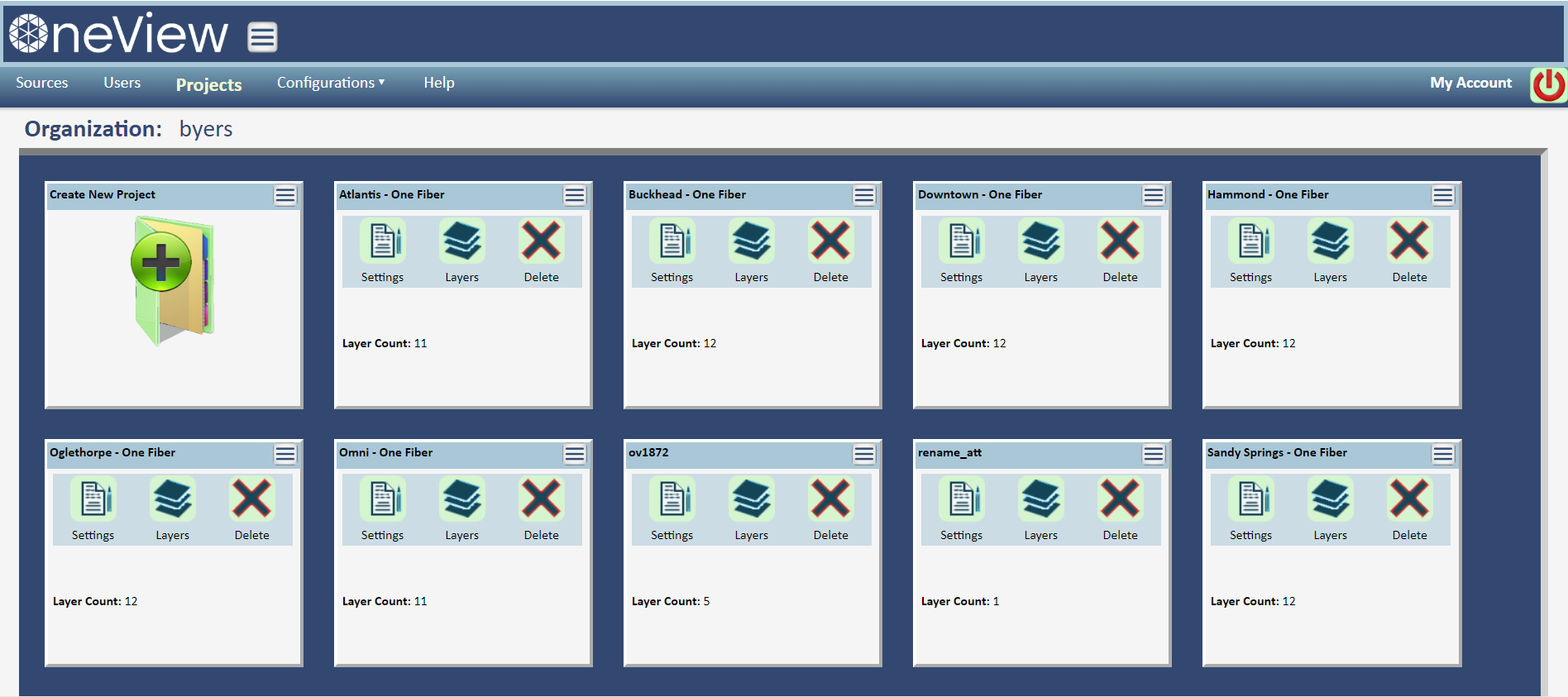
[Hover over the image to see more detail]
Add / Manage System Users and Assign Roles
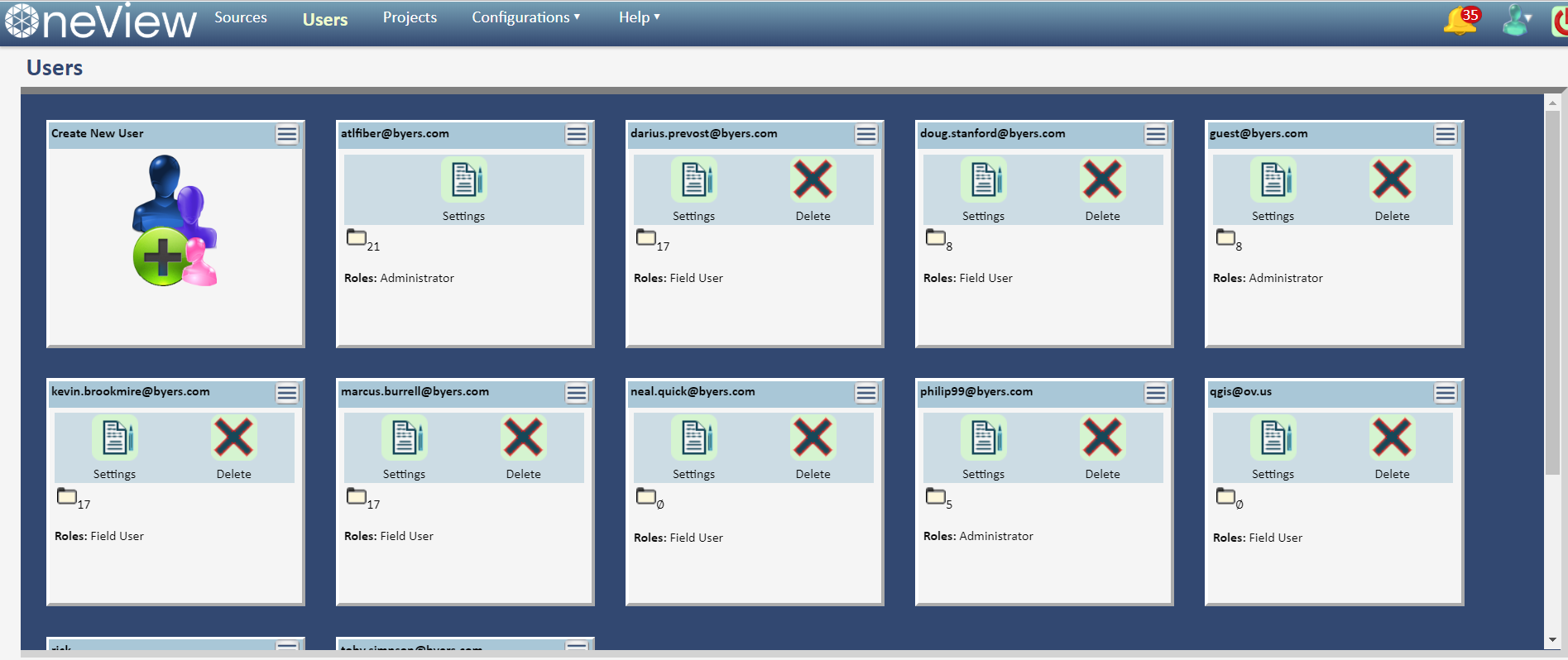
The Users page of the Web Console is where you can add named Users to your SpatialWorx account (this
page can also be accessed through the Account Settings - Manage Users menu option on the Console). You can add or remove Users and assign
a specific Role to each. Available Roles
include: Administrator, Project Manager, Field User, and External.
Once a User is added to your Account they are eligible to be assigned to any active project (you can also assign Users to Projects
directly from this page).
As you add Users to your account you can see the direct billing impact.
[Hover over the image to see more detail]
Add data from a file or point to a database or web service
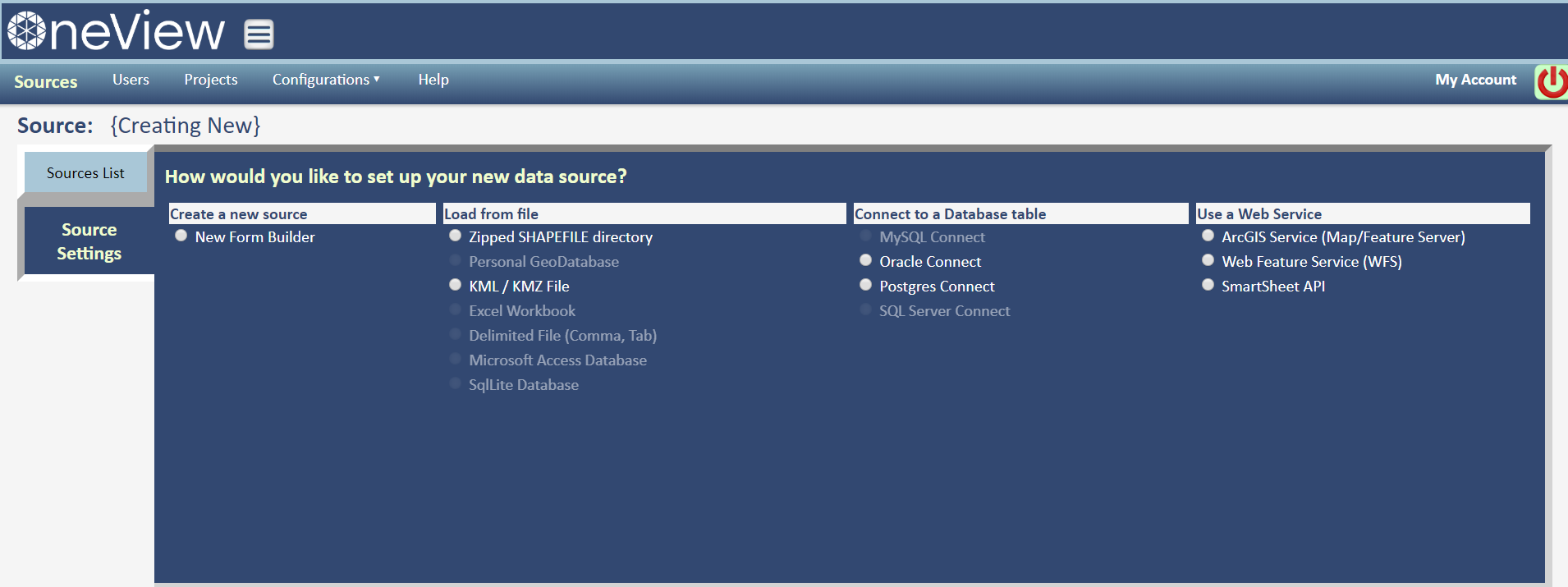
On the Sources page load your GIS-referenced files, or point to an external database or web service.
Sources you load here will serve as the basis for any map/data Layers you add to Projects - think of it as a template. A single
Source can be used to build multiple Layers in one or more Projects.
If you don't have any source data that's no problem - you can create a source from scratch and define its form and display style
(select "New Form Builder" from the "Create New Source" option).
Select the "Create New Source" option, choose the appropriate data source, and find the file or enter the connection information for databases or webservices
. Select the map projection, symbology type (point/line/polygon - use "none" for
data you want to load but isn't mapping data), and graphic manipulations allowed in the field app.
[Hover over the image to see more detail]
Design and build a custom data collection form
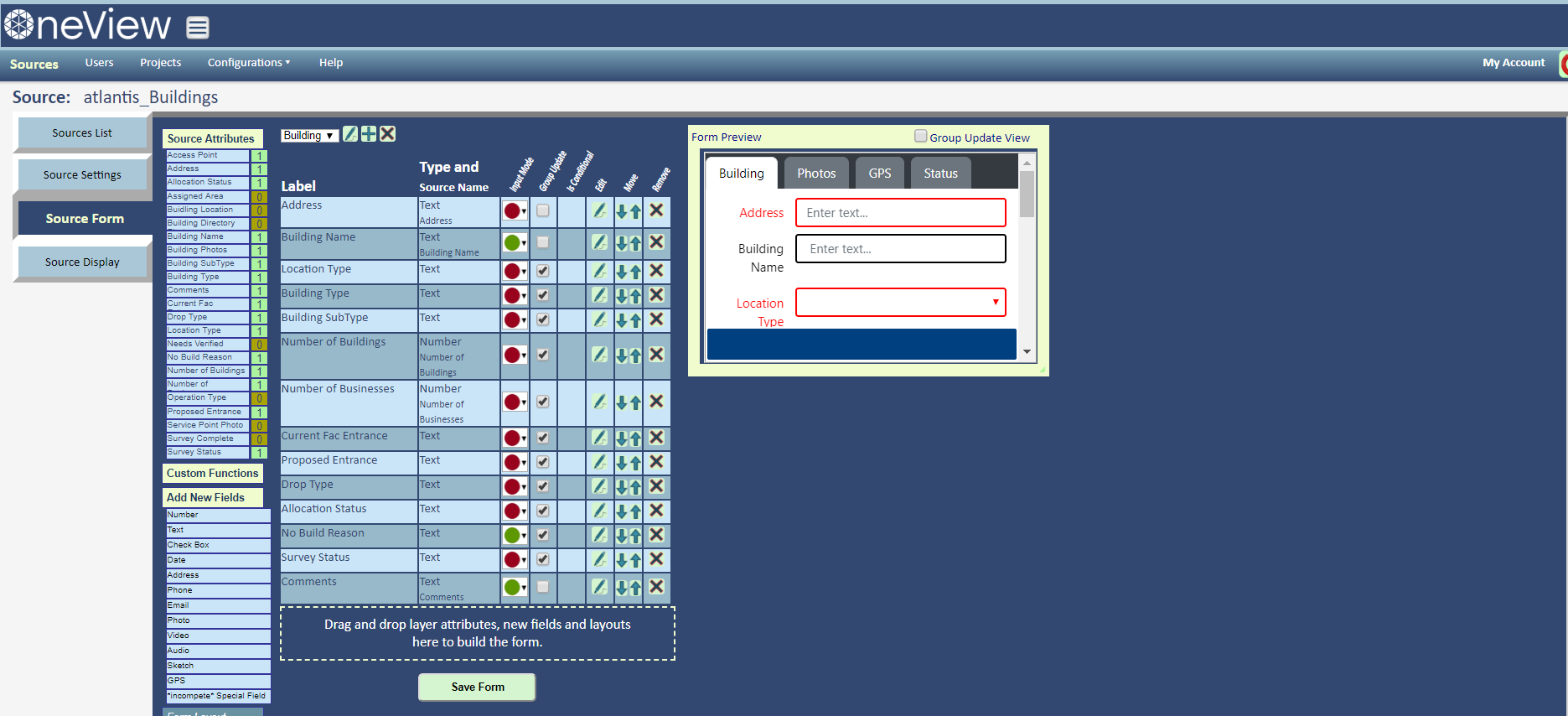
The Source Form tab opens the SpatialWorx Form Builder. Drag/drop attributes from your source data onto the form canvas
or add new fields to your form. Set the label of the field, the name of the attribute,
whether the field is optional, required, or view-only, optionally add pages, and adjust the order of fields on the page. The Preview
pane on the right shows you what the form will look like in the field app.
Select the pencil icon  on a field to open the Properties dialog for more options. For example,
change the field format from simple text to a set of radio buttons or drop down list, and your desired choice options.
on a field to open the Properties dialog for more options. For example,
change the field format from simple text to a set of radio buttons or drop down list, and your desired choice options.
[Hover over the image to see more detail]
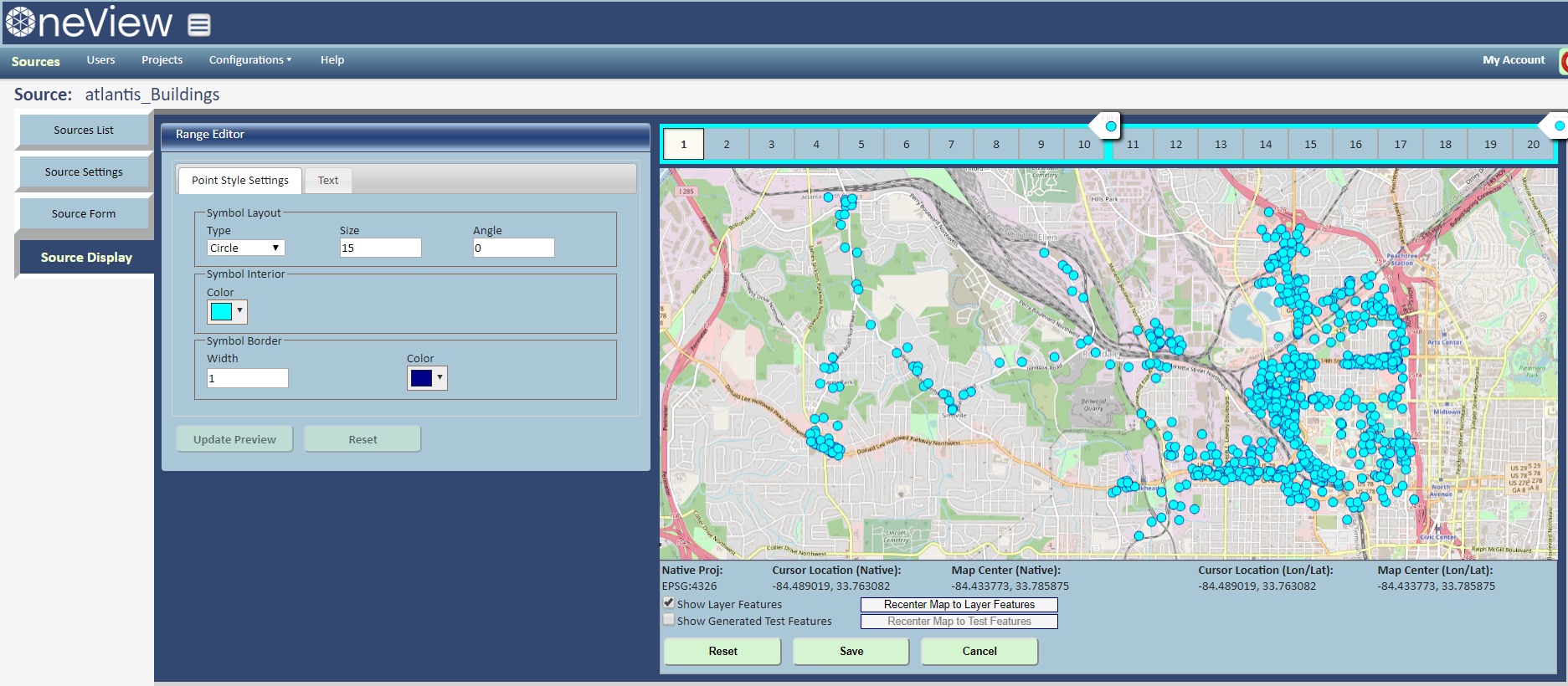
Control how features display on the map
The Source Display tab opens an interface that allows you to choose how features (defined as Layers built from this Source)
will display on the map in the SpatialWorx field app. This includes the symbol size, shape (or image), colors, and optionally any
text to display with the symbol on the map. The map preview pane allows you to see what your feature data will look like in the
map and at various zoom ranges.
Additionally, you can set the zoom range at which features are visible (or hidden) on the map to optimize the experience and
reduce clutter for the field app user.
[Hover over the image to see more detail]
With your Source defined, now you're ready to create a Project!
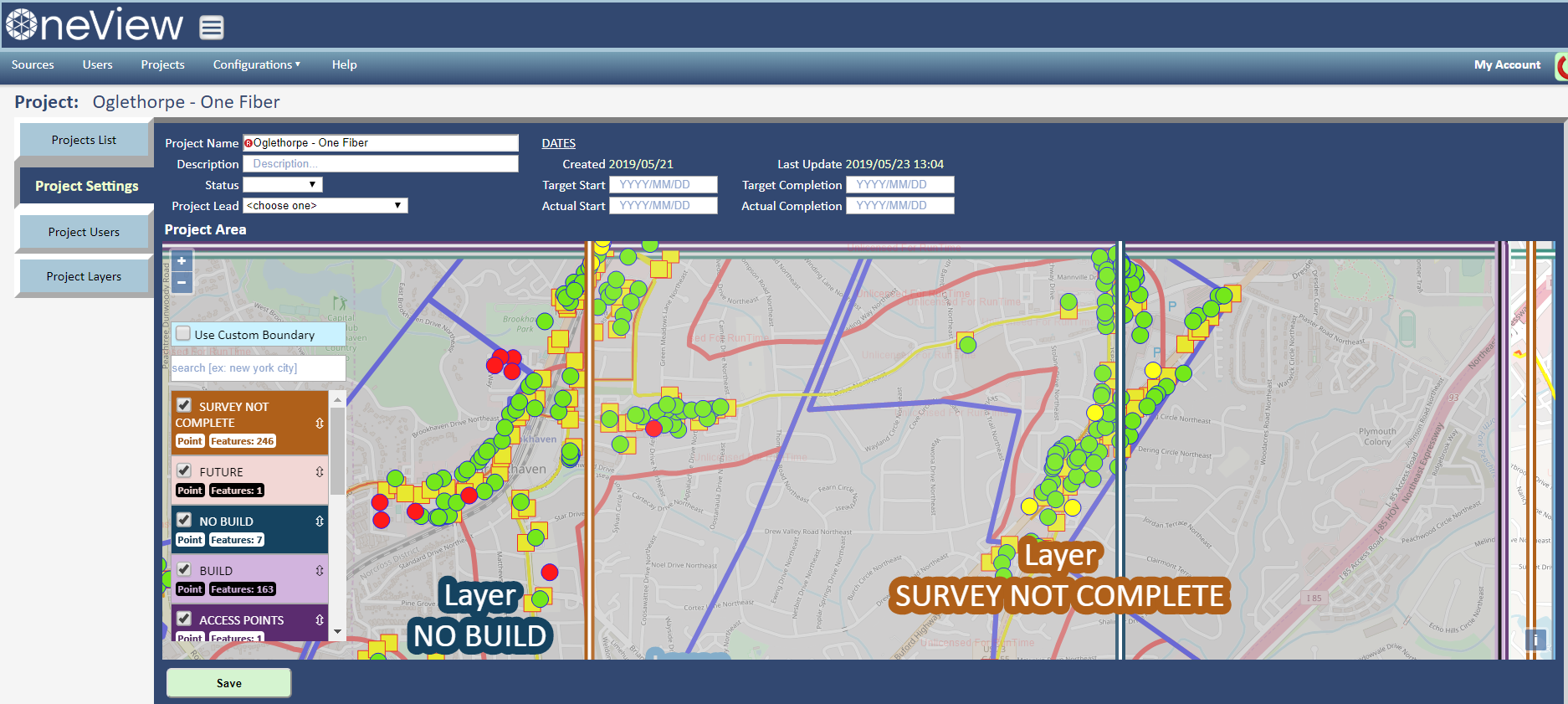
Select the Projects tab/Create New Project option to create a Project as a structure to logically organize and manage the work of your field users.
A Project is a grouping of data layers that is designed to accomplish a particular task or objective. If you already have
data (from a file or external source), that data will be added to the project as you add data layers from each source.
Optionally set a bounding area for your Project to limit the working area and zoom ranges
for field users. It can be manually drawn or you can find/select a known area such as a city, county, park or other entity.
[Hover over the image to see more detail]
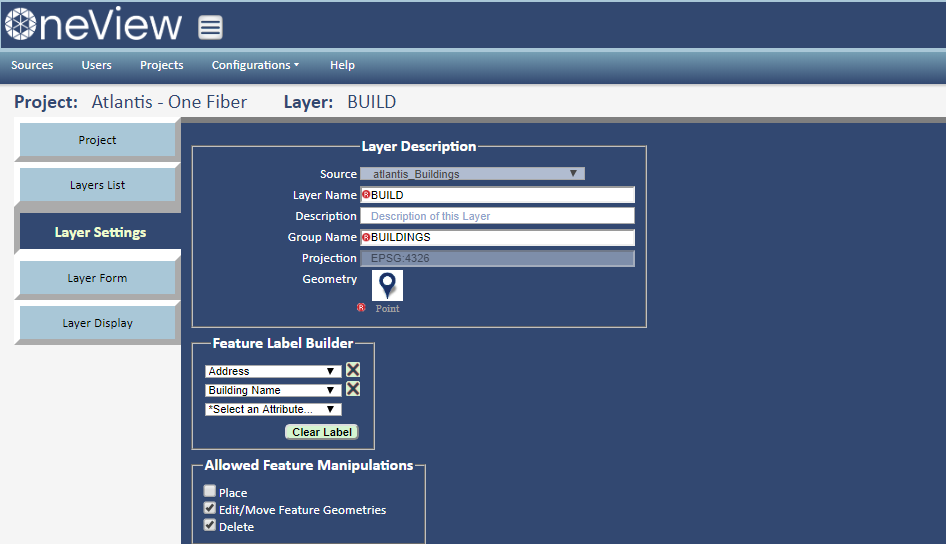
Select a Source to add as a Layer to your Project
Select the Layers icon  on the Projects page for your project and choose "Add Layer to Project". Then select a Source from the list
- the Layer inherits its base properties (form and display style) from
that Source. And the base characteristics of each Layer can be further refined or changed here.
on the Projects page for your project and choose "Add Layer to Project". Then select a Source from the list
- the Layer inherits its base properties (form and display style) from
that Source. And the base characteristics of each Layer can be further refined or changed here.
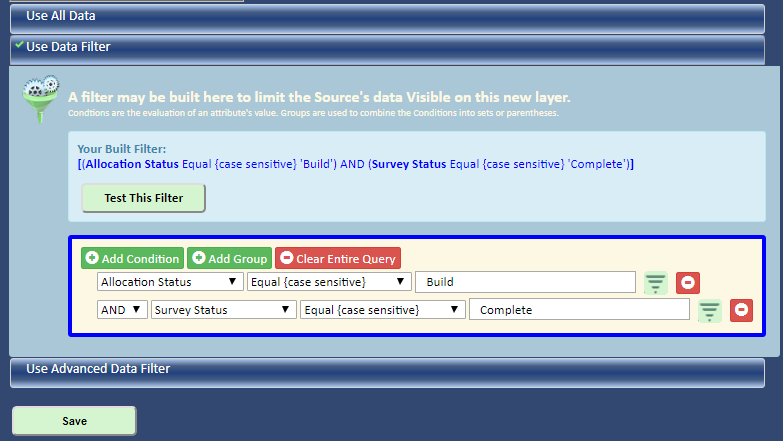
Layers may contain a subset of the Source data by applying data filters you set on this page. This allows you to add several Layers
pointing to a single Source, but differentiated by specific attribute values. For example, with a Status attribute one Layer
is filtered for Status = "Not Complete" and its display is set as a red circle , while the other is filtered
for Status = "Complete" and its style set to a green square .
[Hover over the images to see more detail]
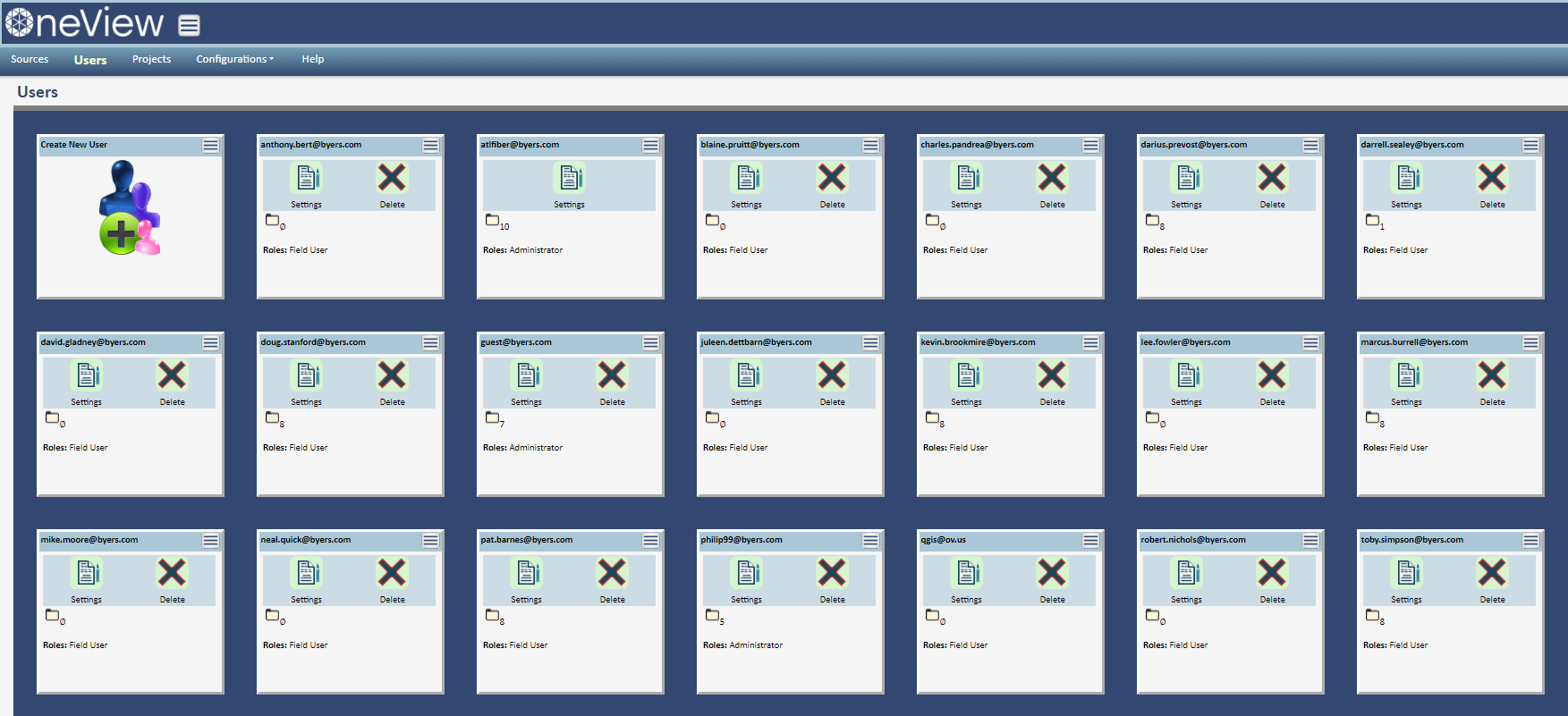
Add named users, specify roles, and assign users to a project
Start by selecting the Users tab to add named users to your SpatialWorx account. Enter their account information and select an appropriate role as:
Field User (this only allows use of the field app), Project Manager (this user can use the field app and build projects), Administrator (this
role can use the field app, build projects, and edit customer account information),
or External (this role only allows access to exported layer data or layer data from a WMS/WFS Service).
To assign specific users to a project, open the Project Settings page for that project and select the Project Users tab. Check each user in the
list that you want to assign to the project and Apply.
[Hover over the image to see more detail]
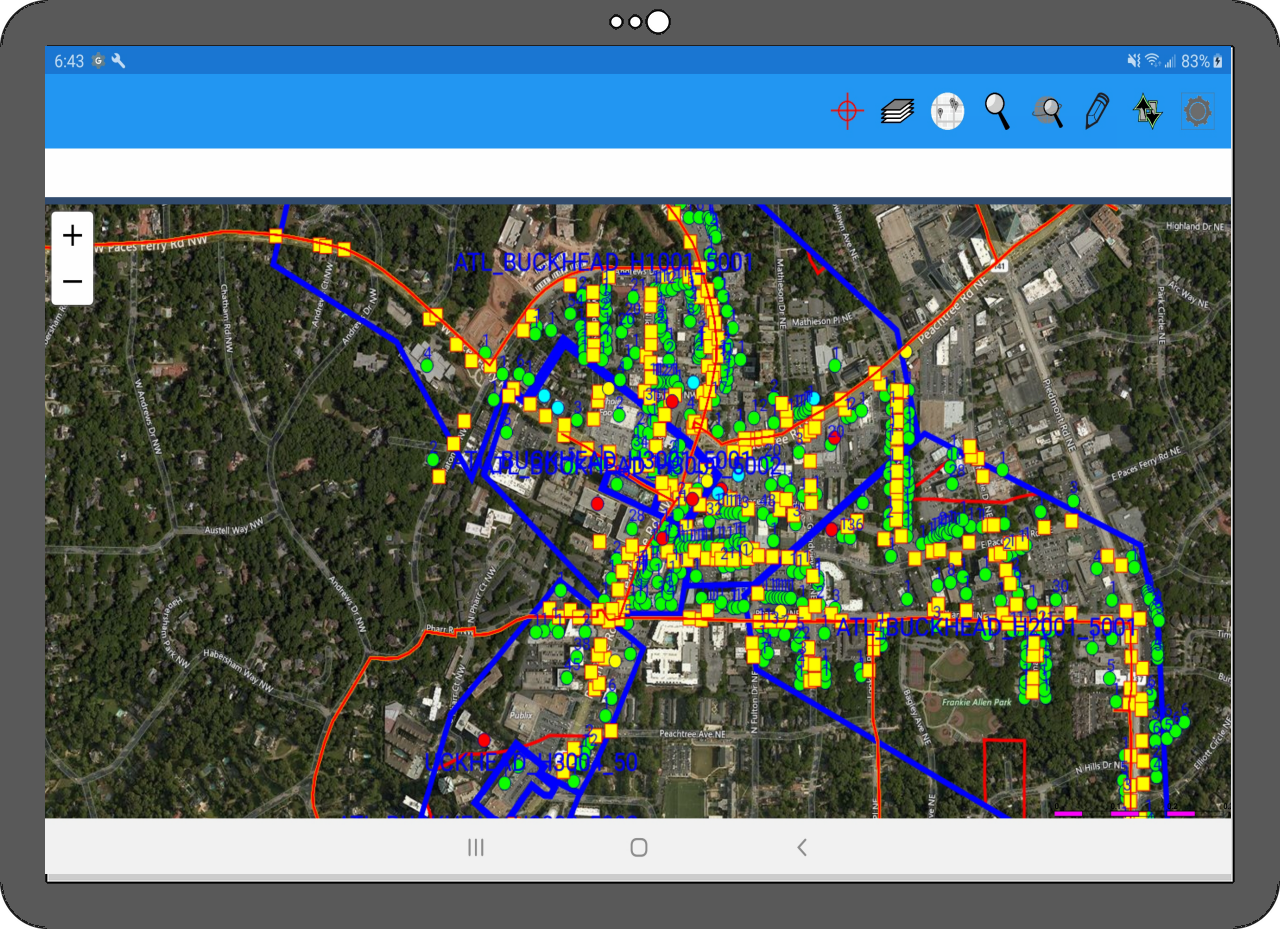
Distribute the Project to all assigned Users
Once you have completed setting up your Project you will need to enable it for distribution (select that option on the Project Settings page).
Users who are assigned to the Project receive an email with instructions to download/install the Application from the appropriate App Store
(Apple, Google, Windows).
Each user installs the SpatialWorx Application (if not already installed), signs in, and automatically has access to all the data and maps
in any Project to which they have been assigned.
[Hover over the image to see more detail]