Add a Bookmark
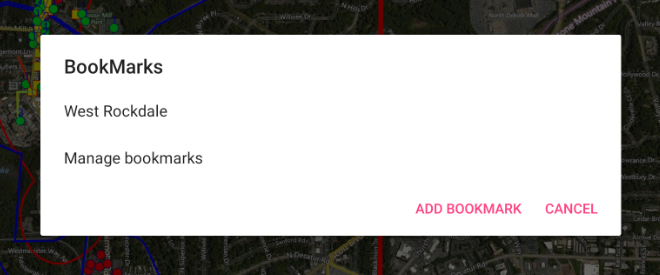
Select the map icon from the main app menu  to open the bookmark dialog. This dialog will list any saved bookmarks (by name) and also give you the option of saving a new one.
Add a bookmark only when you have the map extents on the specific area you want to save and any layers you want to display (or turn off) set as such.
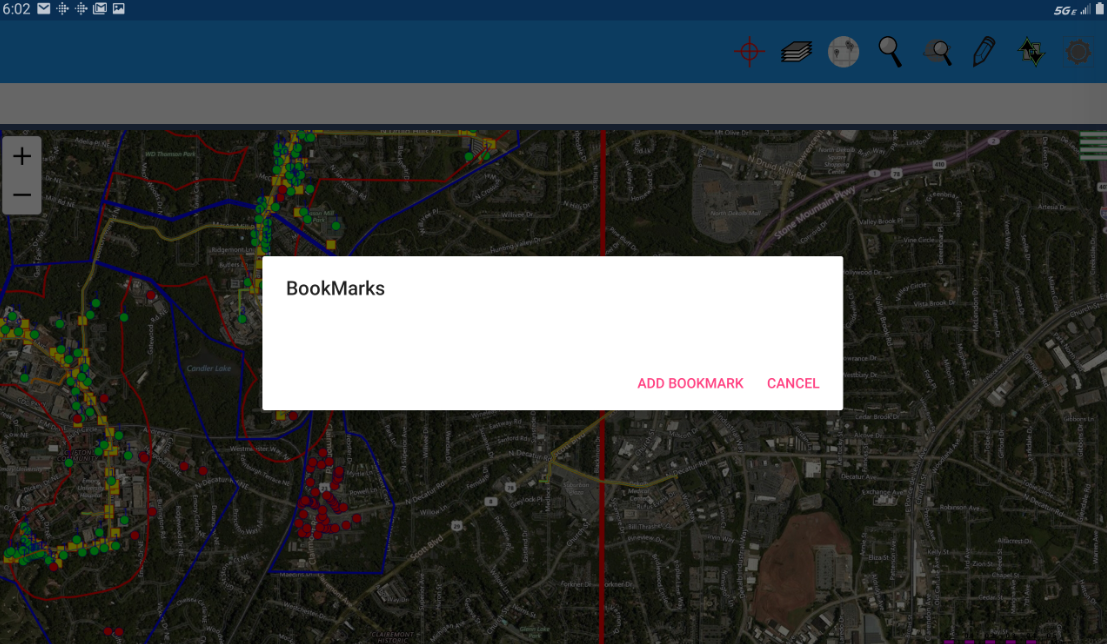
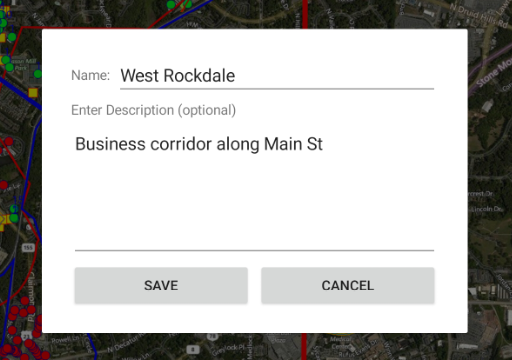
To add a new bookmark select Add Bookmark which will open another dialog where you can name the bookmark and add a description for it. Press Save to add this new bookmark to the list.
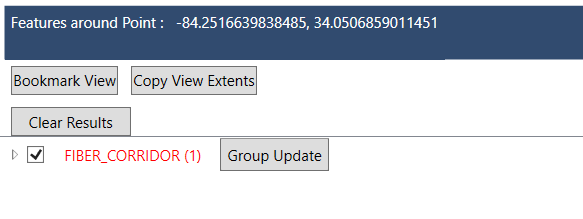
You can also bookmark a view by selecting a point in the map and either doig a long press (touchscreens) or right button (with a mouse). Then press the Bookmark View button on the feature search results dialog (regardless whether features are listed in the dialog or not).
Manage Bookmarks
To go to a specific bookmarked area simply open the bookmark dialog again and select the desired bookmark name. If you want to update or delete any existing bookmark just select Manage Bookmarks - from this dialog you can update the view extents it covers, delete the bookmark, or change it's name or description.