Search for Features
Select the magnifying glass icon from the main app menu  to open the feature search dialog. The search dialog opens at the bottom of the map view and allows you to search for any text string that
is part of the attribute value for a specific feature (or any feature) in the active project. To initiate the search, press the magnifying glass icon on the search
options dialog.
to open the feature search dialog. The search dialog opens at the bottom of the map view and allows you to search for any text string that
is part of the attribute value for a specific feature (or any feature) in the active project. To initiate the search, press the magnifying glass icon on the search
options dialog.
You have the option of constraining the search by feature and/or a specific column on a feature using operators such as "like", "not like", "equal" (=), "not equal" (!=),
"greater than" >, or "less than" <. You also have the option of searching the entire project (Full Map) or just within the current map view.
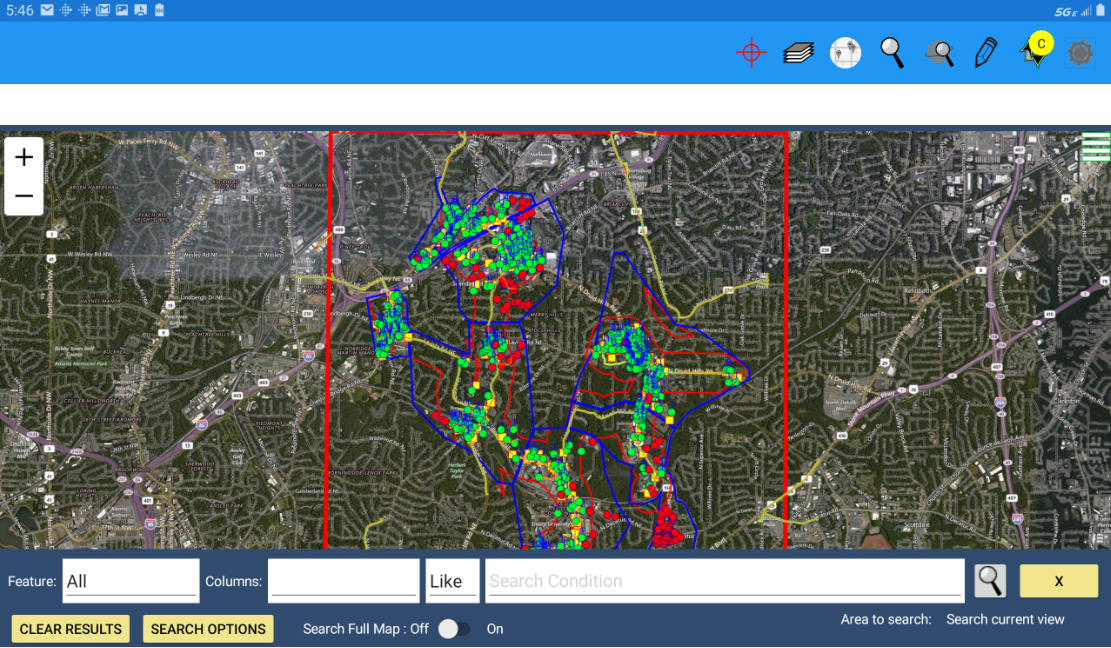
Search also provides the capability to add additional search criteria (fields), define the specific area to search, or clear the defined search area and and specify a new area or search criteria.
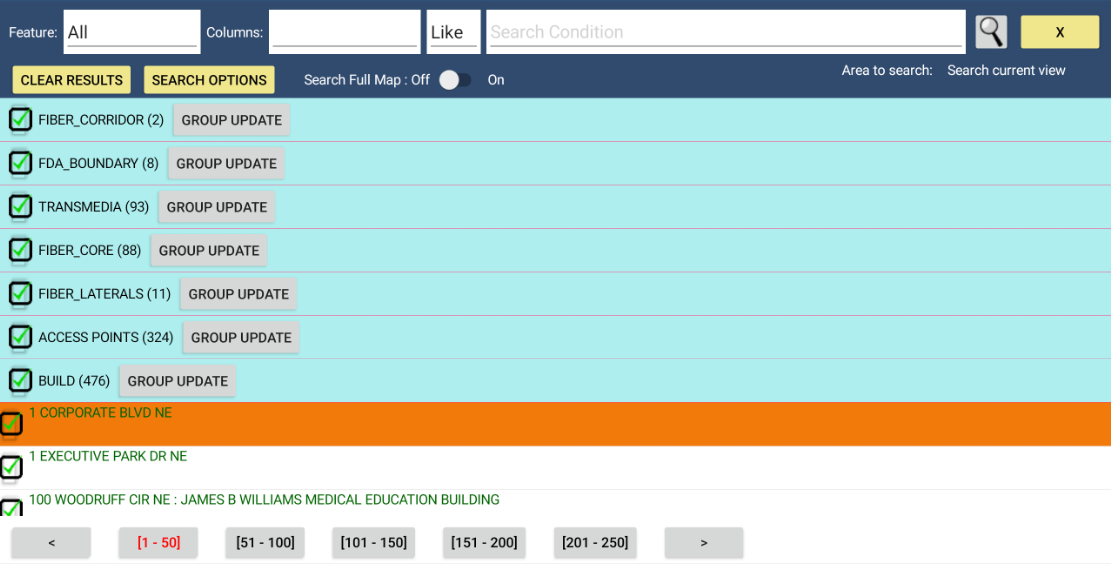
Feature Search Results
If no features are found that match the search criteria, the search results dialog is opened but is empty. If features are found that match the
criteria they are shown in the results area of the search dialog, listed by layer - select the layer row to open up the list of features
found for each layer (the app also shows the number of features returned on each layer). If more than 50 features are found for any layer a set of range selectors
are displayed so you can easily move from one block of features to the next.
Selecting any feature in the list will open the form for that feature for review or edit (and to allow you to zoom to the feature in the view.