to open the app settings dialog.
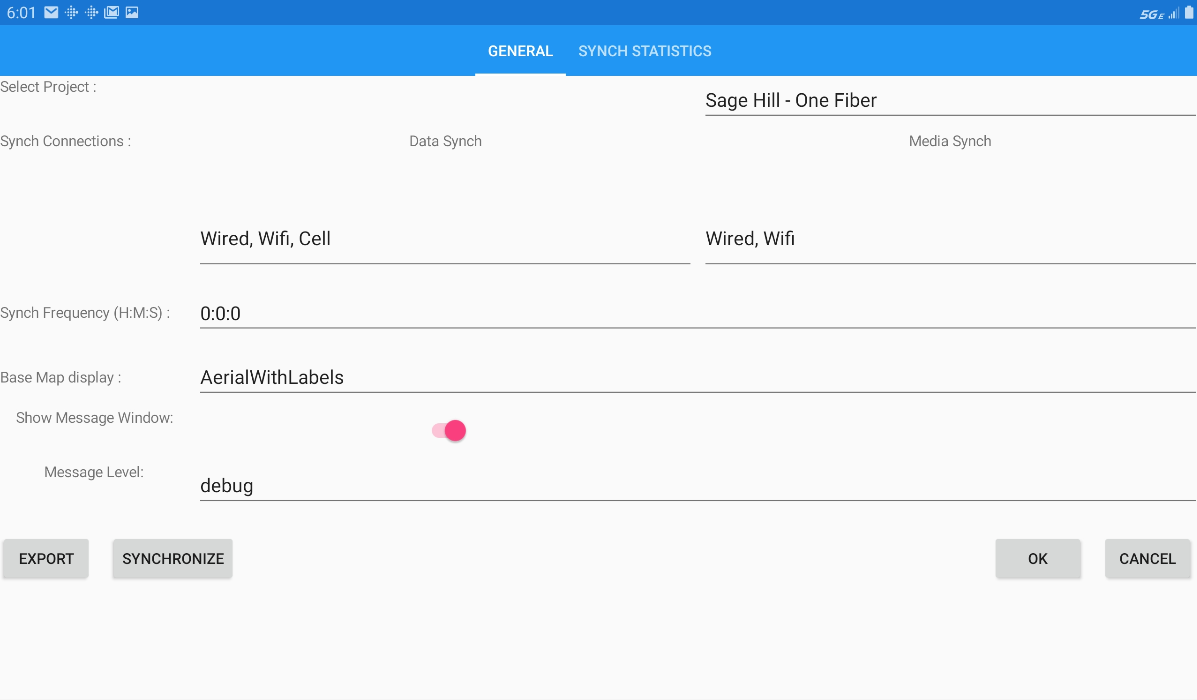
Select the gear icon from the main app menu
to open the app settings dialog.
Select Project
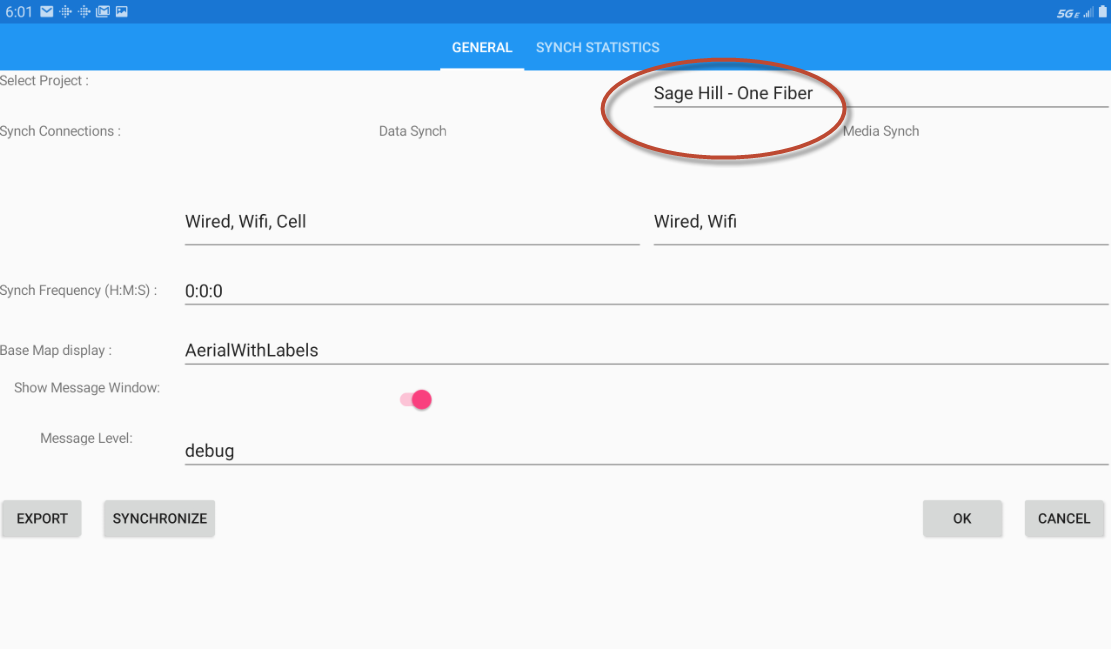
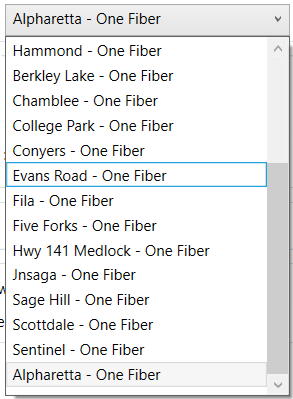
The Select Project setting opens a list of all local projects on the device. Select any project from the list to open it and close the current project.
Sync Connections
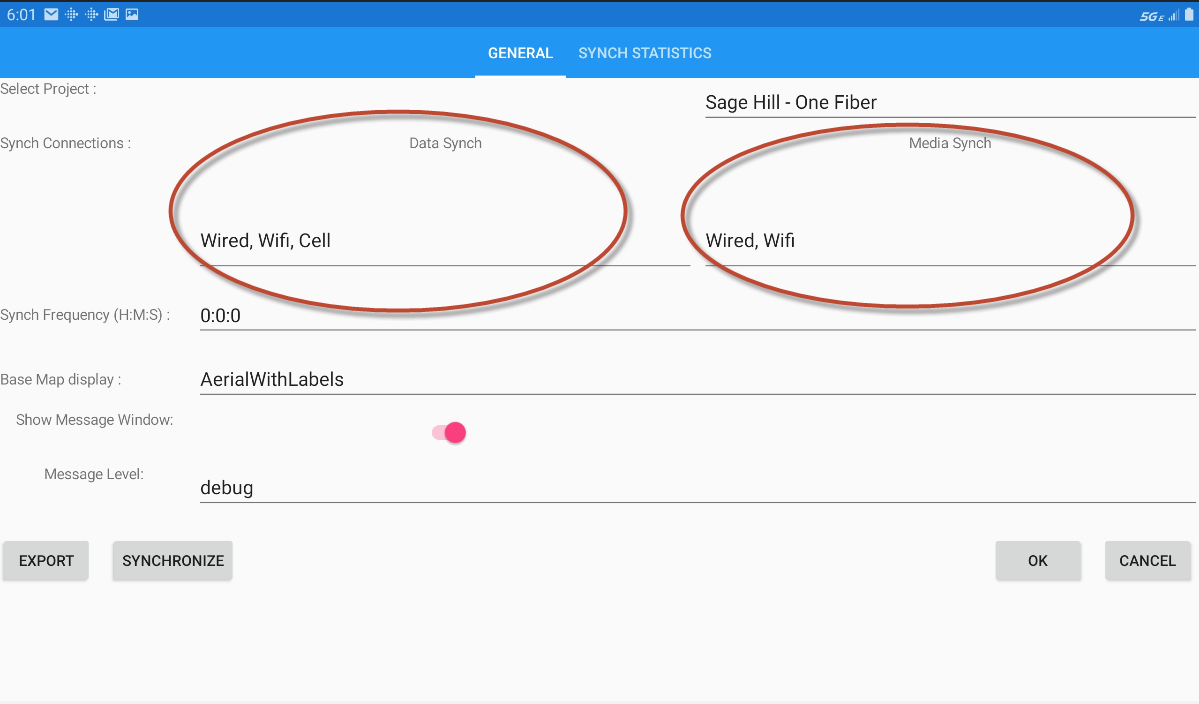
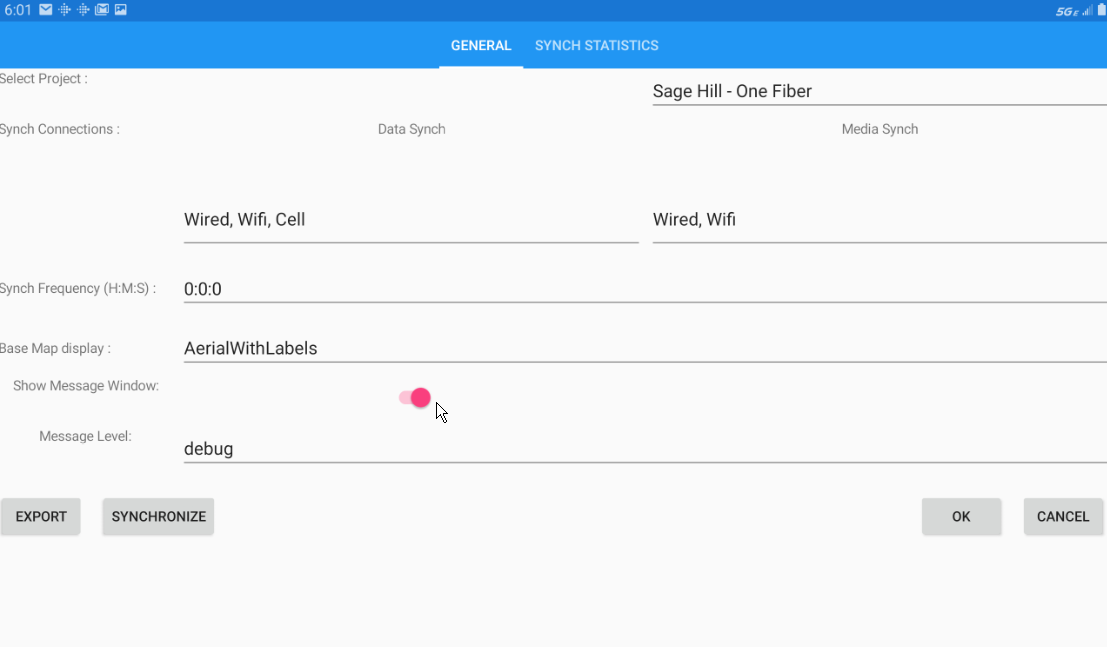
The Sync Connection settings on the Settings dialog allow you to configure how feature data and media files are synced in order to respect data usage plans and battery life. You can specify the type of network connection (wired, wifi, or cell) that each datatype can be transferred on. For example, in this illustration you can see that Data (tabular) can be transferred if you have any type of connection but Media data (files) can only be transferred via a sync operation when you have either a wired or wifi connection - but NOT via a cell connection.
Sync Frequency
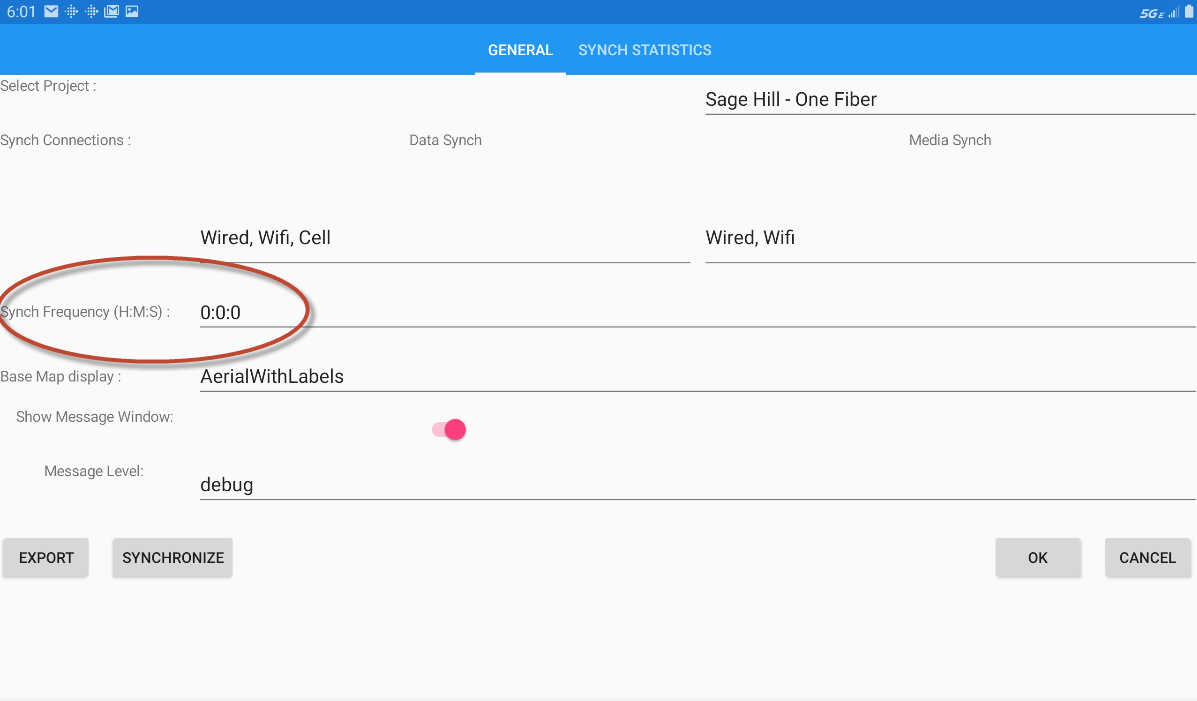
The Sync Frequency setting specifies the time interval between each auto-sync operation. Auto-sync is a background process that syncs all local and server updates at specific intervals. When set at "0:0:0" (hours:minutes:seconds), as in this illustration, it means that auto-sync is turned off. If set at "0:15:0" that would mean that auto-sync is run as a background process every 15 minutes.
Basemap Selection
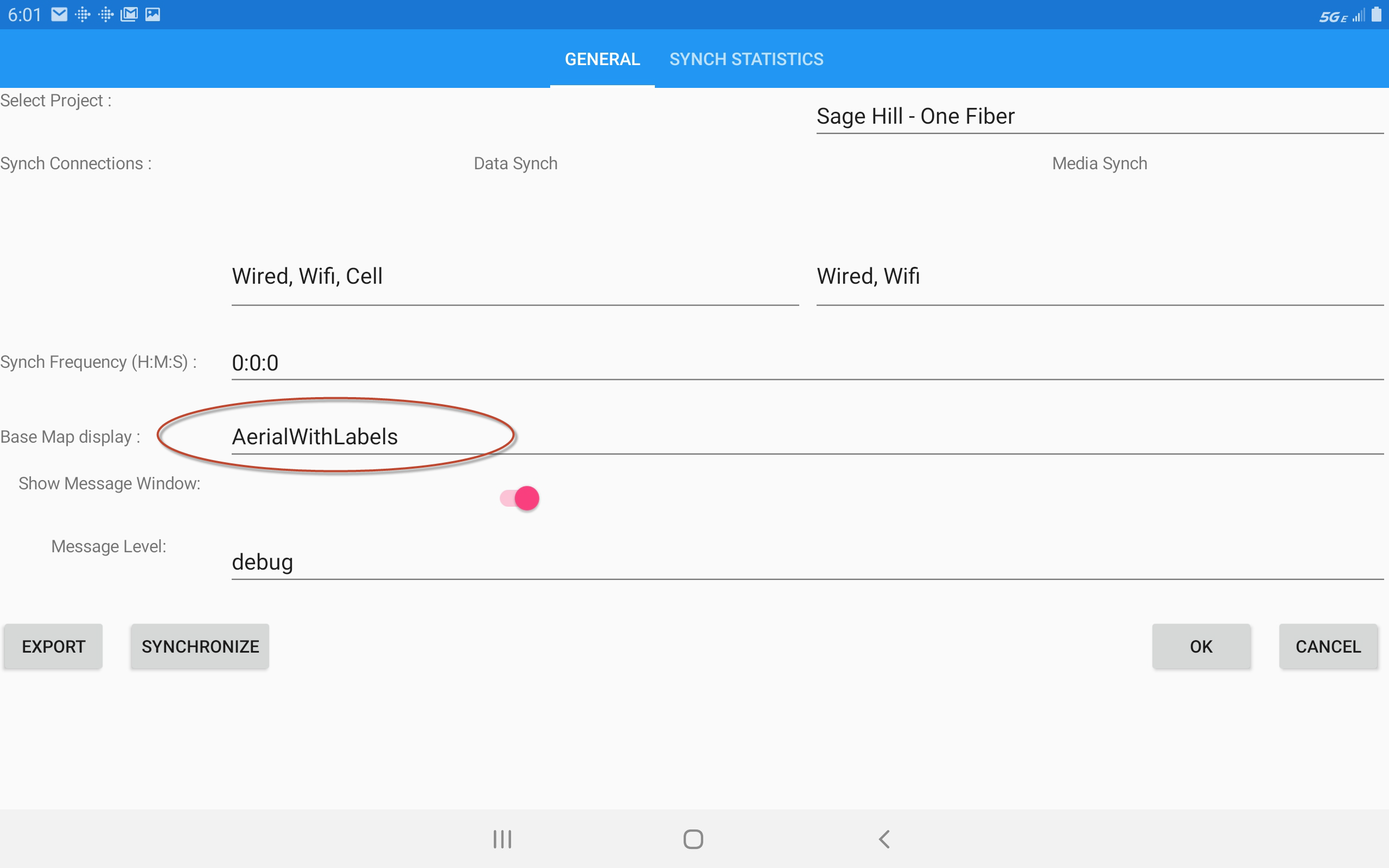
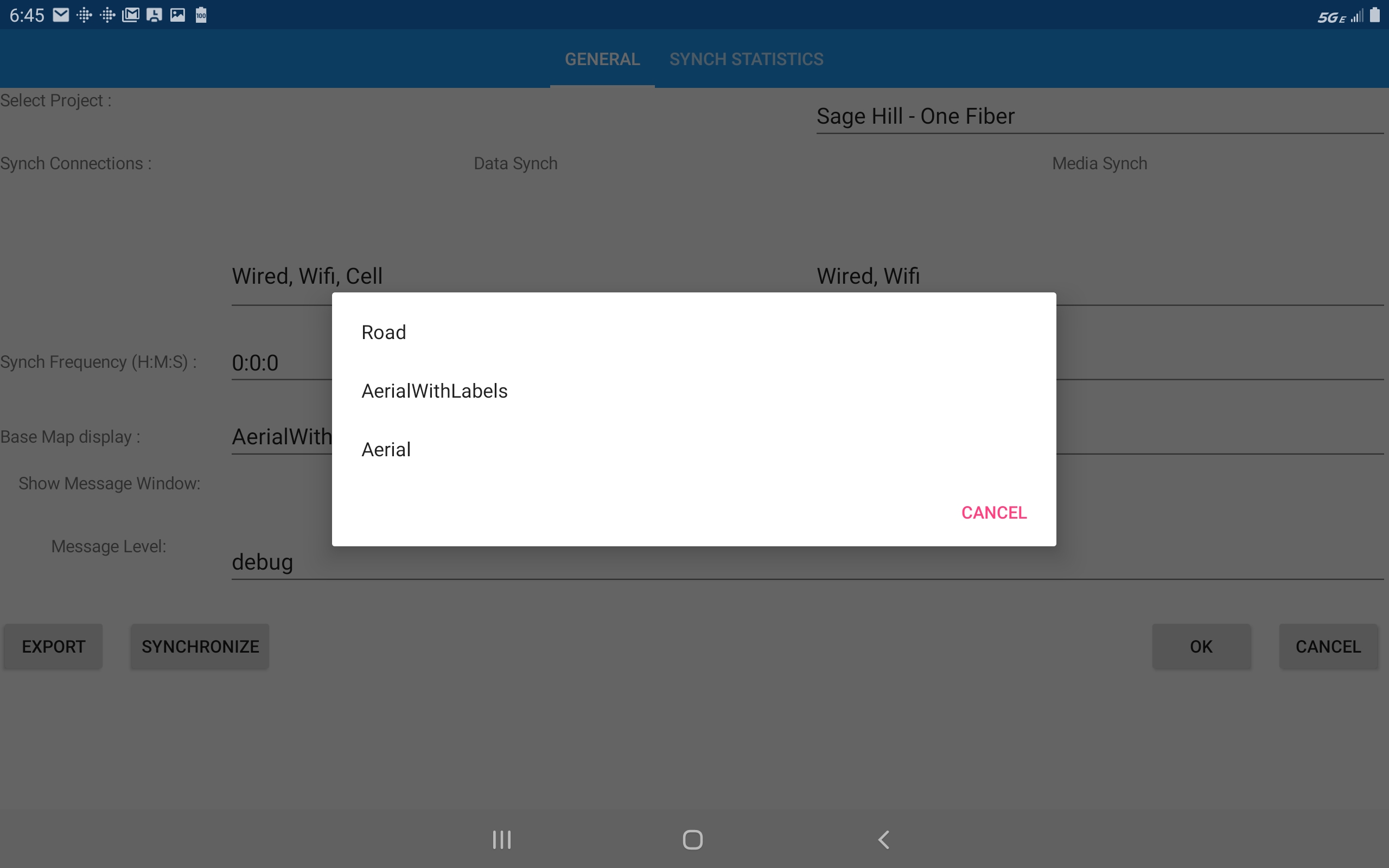
This allows you to select a different basemap from the list.
Show Message Window
This setting tells the system to add a message window to the app interface. This window, located near the top of the app window, displays pertinent system messages related to processing failures, errors, connection failures, etc.
Message Level
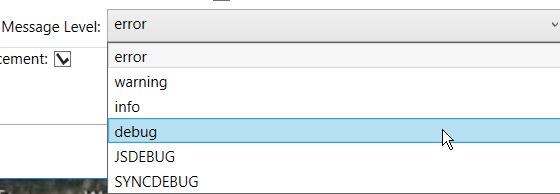
This setting provides a list of different message levels designed to capture information about system errors and is mainly used by the SpatialWorx development team.
GPS
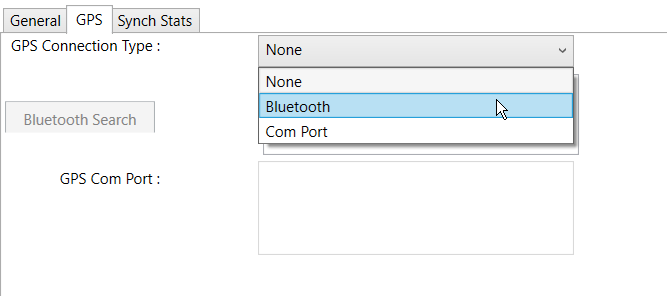
The second page of the Settings dialog allows you to configure an external GPS device for integration with data capture in SpatialWorx.
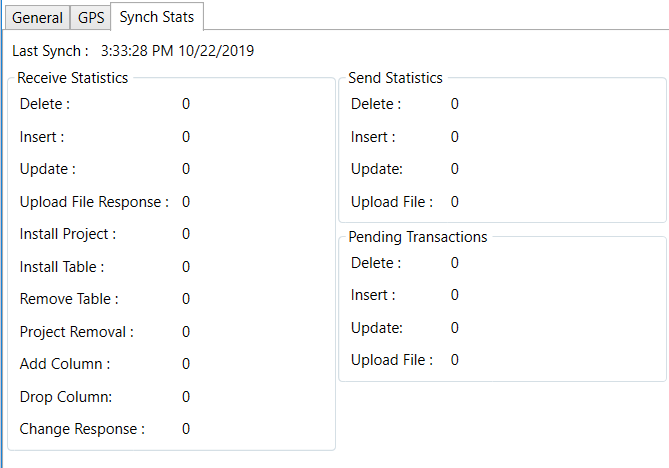
Synch Stats
This setting provides statistics for the last sync operation performed in the app.