Spatial Operations Overview
Select the icon that depicts a magnifying glass above the globe from the main app menu  to open the spatial query menu. Spatial operations are functions that the app provides that are spatially bound (based on specific space or areas of the map).
These include measuring capabilities (a line between 2 points or the area of a polygon) and the ability to define an area (or areas) to use for a feature
search.
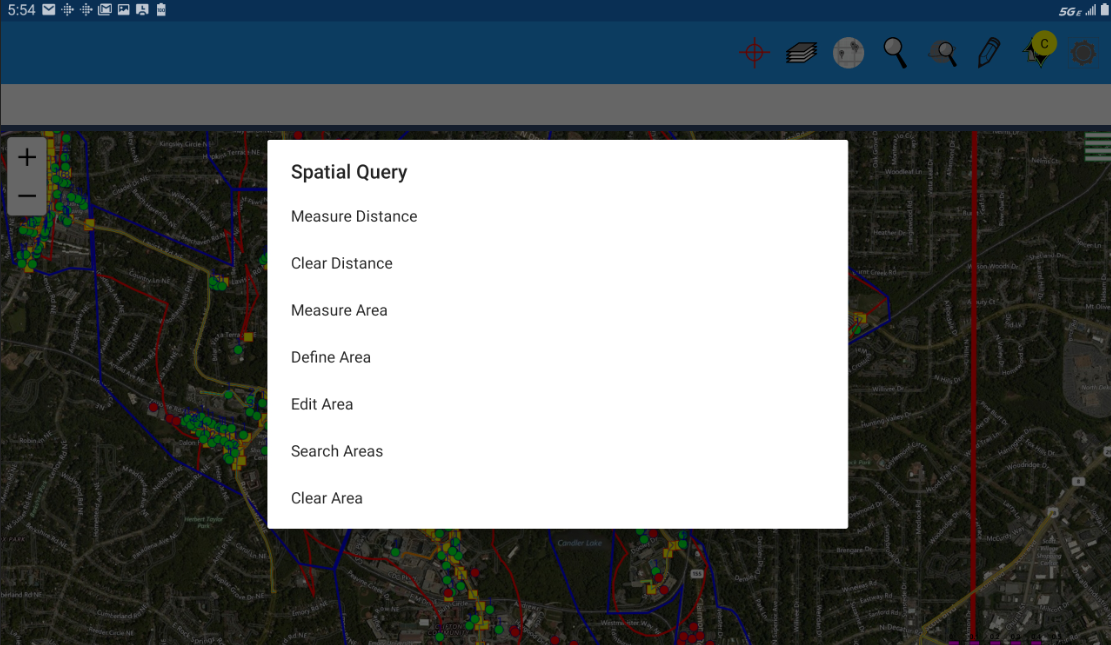
Measure Distance
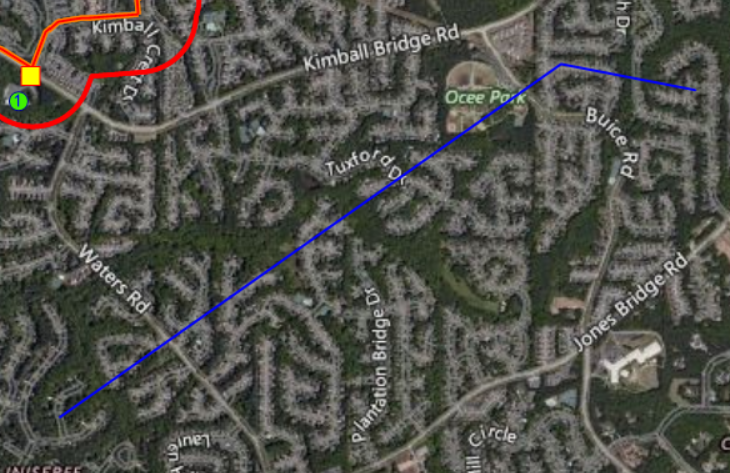
Measure distance allows you to draw a line between 2 points in the map and see the exact distance in feet (future plans are to add the capability to change
the units of measure to feet, meters, etc).
On a touchscreen you simply pick the points that make up the line - on a non-touchscreen device you can use the mouse to choose the points. The line can also
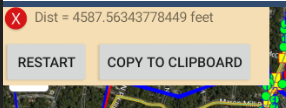
optionally be made up of multiple segments. While drawing the measurement line a dialog will open that includes both a Close and Restart button. Selecting Close will
close the line and calculate the total measurement for display.
Clear Distance
The Clear Distance option clears out the previous line and measurement.
Measure Area
Measure area allows you to draw a polygon around any area in the map and get a readout of the total area in square feet (future plans are to add the capability to change
the units of measure in the readout to feet, meters, etc).
On a touchscreen you simply pick the points that make up the polygon - on a non-touchscreen device you can use the mouse to choose the points. While drawing the
measurement polygon a dialog will open that includes both a Close and Restart button. Selecting Close will
close the polygon and calculate the total measurement of the area for display.
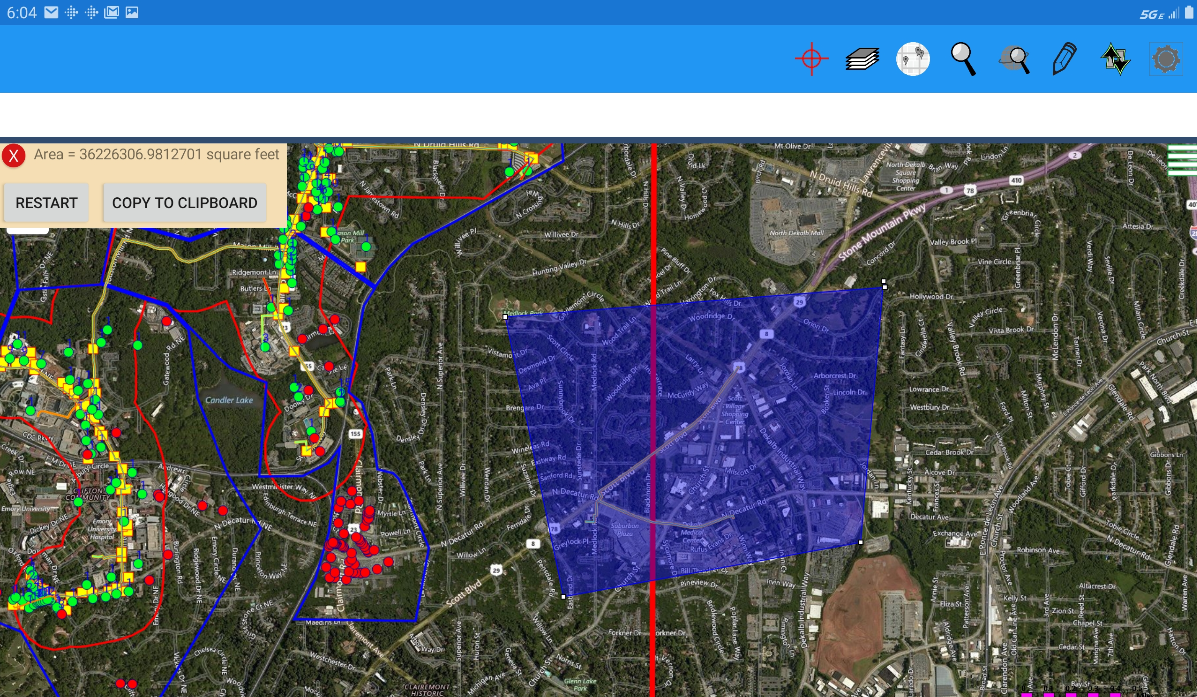
Clear Area
The Clear Area option clears out the previous polygon and measurement.
Define Area
Define area allows you to draw a polygon around an area on the map that you can search for features within.
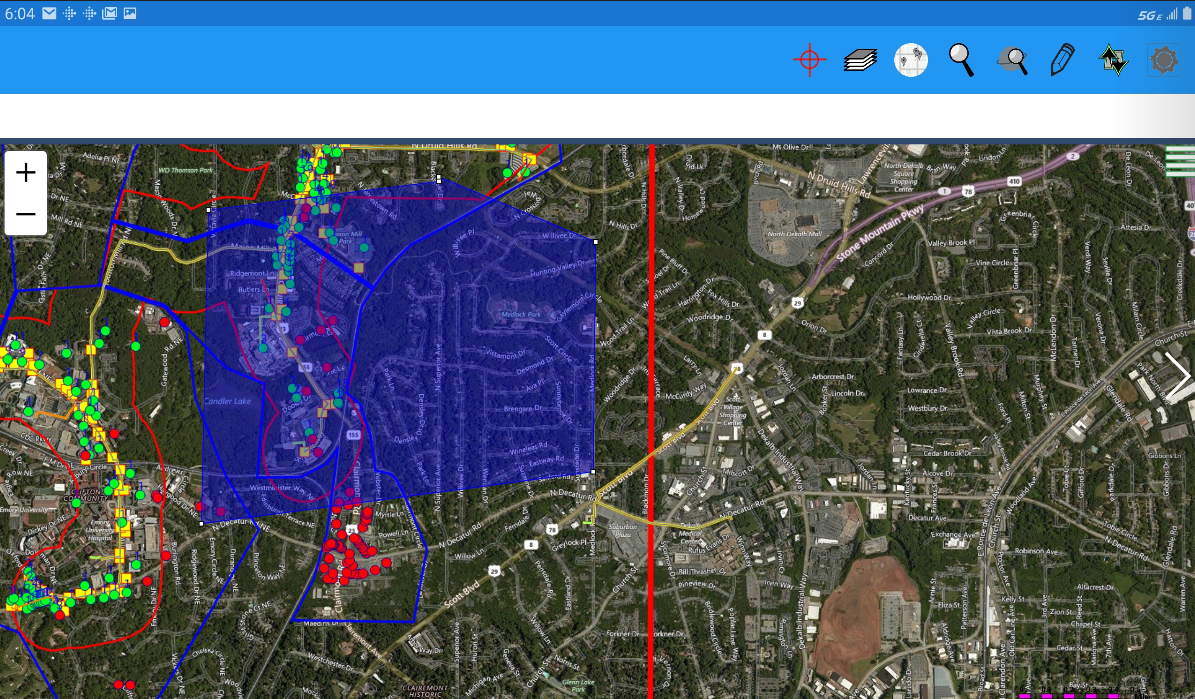
Edit Area
Edit area allows you to modify the previously defined polygon for the selected area(s). When the polygon is selected it turns red (from blue) to signify it is in editing mode and each vertex will appear as a circle. You can select any vertex to drag and modify or select any point not at a vertex to add a new one.
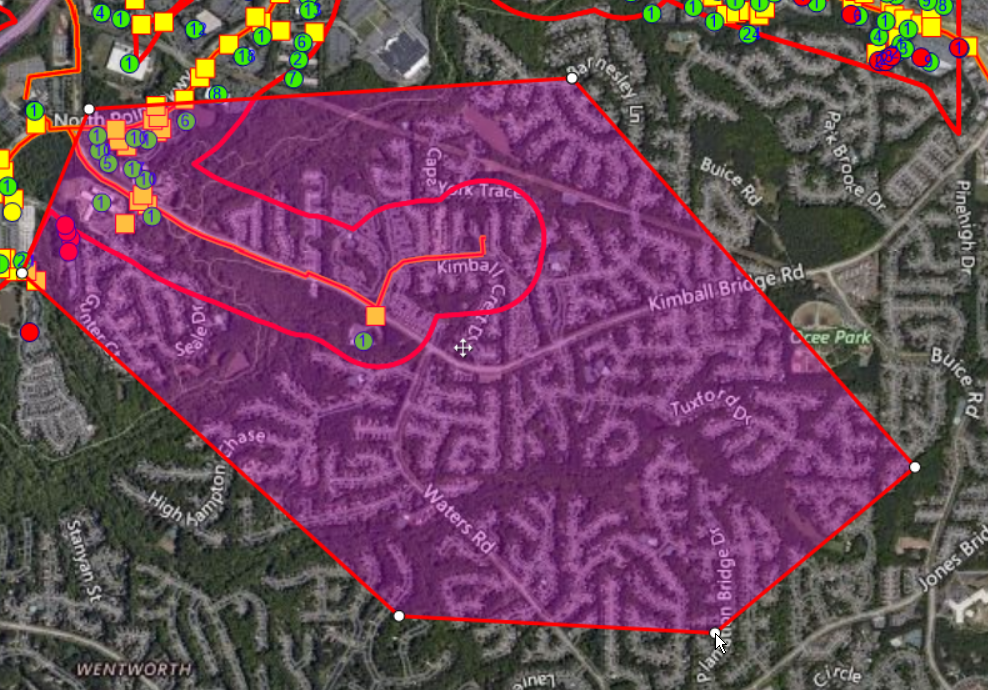
Search Areas
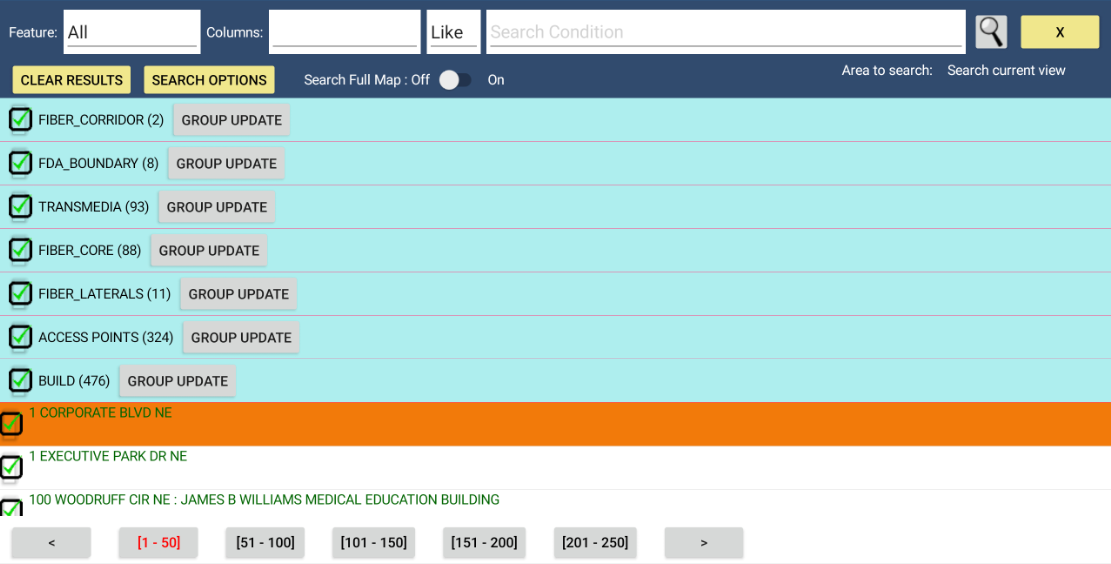
Search area simply launches a feature search against the polygon area (or areas) you have previously drawn and opens the same feature search results dialog that opens when you run a straightforward feature search.