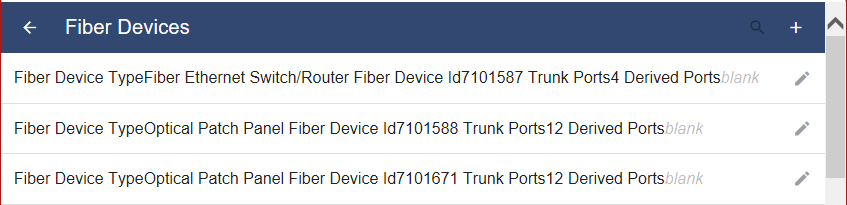
A Subform is simply a form for a Layer that is embedded in another form and is typically used to capture child records within the form for the parent Layer. The child Layer can be either a geo (graphical) or non-geo Layer but is most commonly non-geo (non-graphical).
To add a Subform to a Layer's form you must first have created a form for the child Layer and that child Layer must exist in the Project along
with the parent Layer. So the basic steps are to build a Source for both the child and the Parent, then add them both to your Project.
The Subform control should only be added to the parent form on the Layer within the Project, rather than adding a subform to the Source form. That is
simply because the Subform needs to reference the child Layer name, not the Source.
Add a Subform by dragging and dropping the Subform control onto the form canvas for the parent Layer.
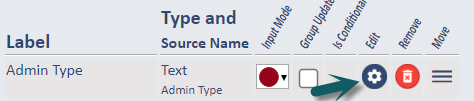
The Subform can then be configured by selecting the Edit option (gear) on that row of the form.
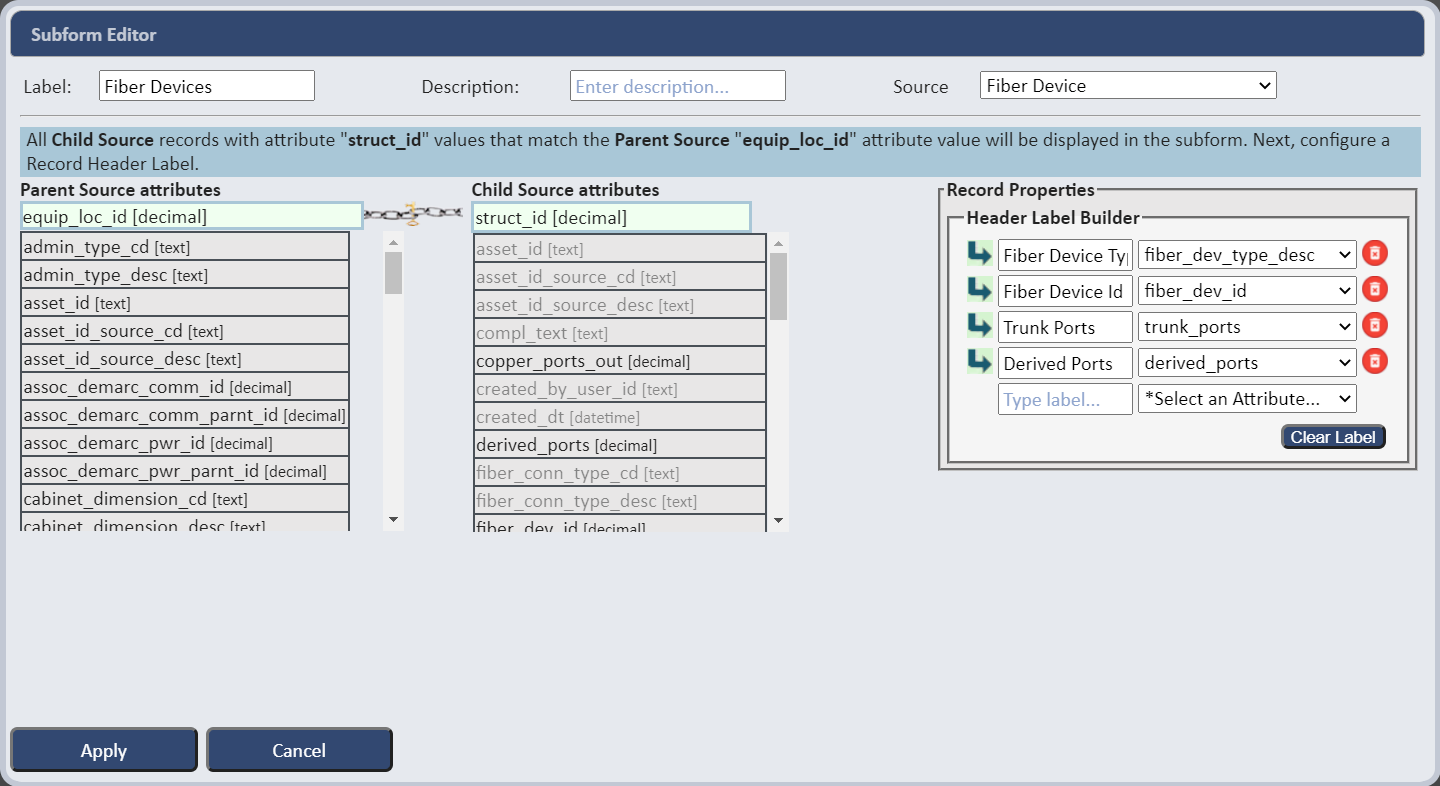
The Subform Editor contains options to specify a label, add an optional description, select the Source (name of the child Layer whose form you want this subform to open), select the attributes that serve as keys to link the child to the parent Layer, and build a header label.
Options:
On the first line of this dialog specify the Label, optional Description, and Source (child Layer name).

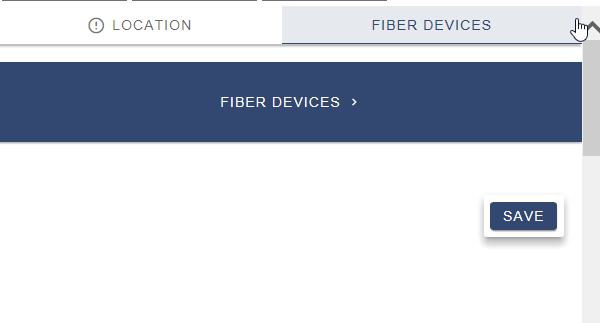
This is how the subform label displays in the SpatialWorx app.
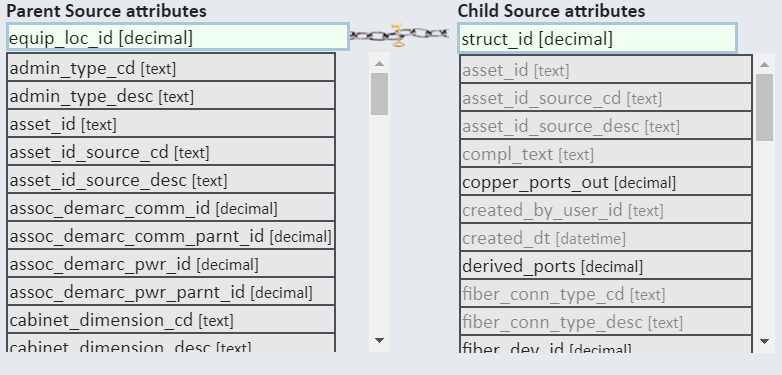
Next choose attributes from both the parent and child Sources that you want to serve as key values to link children to their parent records.
If you have existing Source data and there are aleady linke keys you will need to choose those specific attributes. If you have no source data to begin
with you can add your own attributes to serve as link keys between child records and their parents.
It is extremely important that the link keys are setup correctly because that is the only way the system know what children are owned to what
parents. That means care must be taken to not allow edits to key values on child records if on the form - is users inadvertently change that value
to something that doesn't match any parent record the child record(s) will be orphaned.
The Header Label Builder section of the subform editor allows you to build a textual string of attribute values that display on the subform in the SpatialWorx app and allow you to easily distinguish different child records.
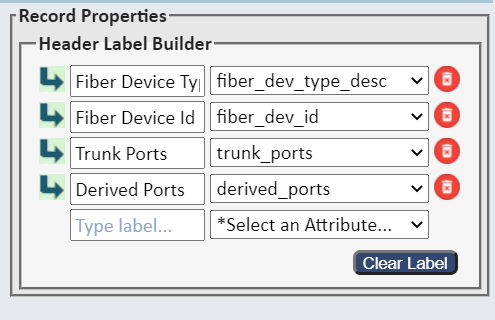
This is how the subform record header displays in the SpatialWorx app.