The Group Update control in the Console specifies that the value for a field can be updated for multiple features as a group in a single edit action rather than forcing users to select each of the features individually and edit that same field value. For example, for a damage assessment survey after a storm the field user may update a Damage Status value as "No damage" for all houses on a street.
The Group Update check box is available on both the form canvas for any field and the Attribute Editor dialog (opened by selecting the Edit icon on any field).
The Group Update button displays next to any Layer section on the feature results screen that has Group Update enabled for any field(s) on its form.
The checked checkbox next to each feature row indicates it as a member of the group of features eligible for Group Update - uncheck any features you don't want to update as a result of a subsequent Group Update action. You can also "select all" features by selecting the checkbox next to the header row for all featurs on this Layer.
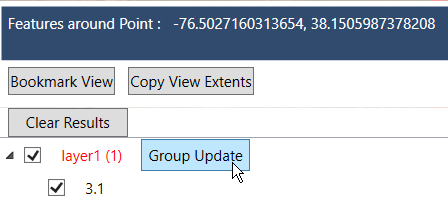
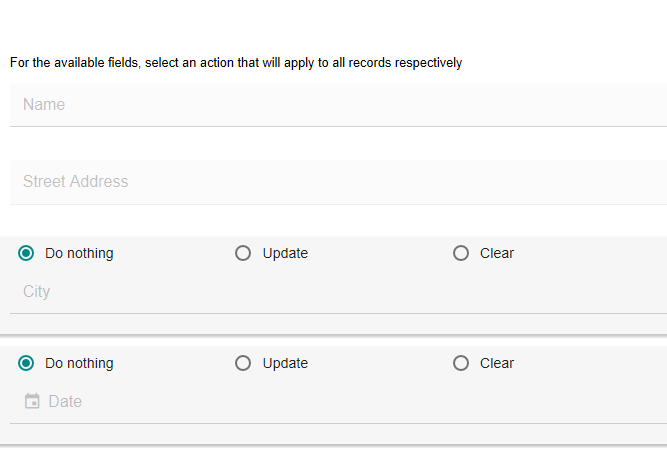
After selecting all desired features for the update, press the Group Update button. This will open a single generic form for all selected features on this Layer - all fields not enabled for Group Update will be blank and not editable. Fields enabled for Group Update will show options for "Do nothing", "Update", and "Clear".
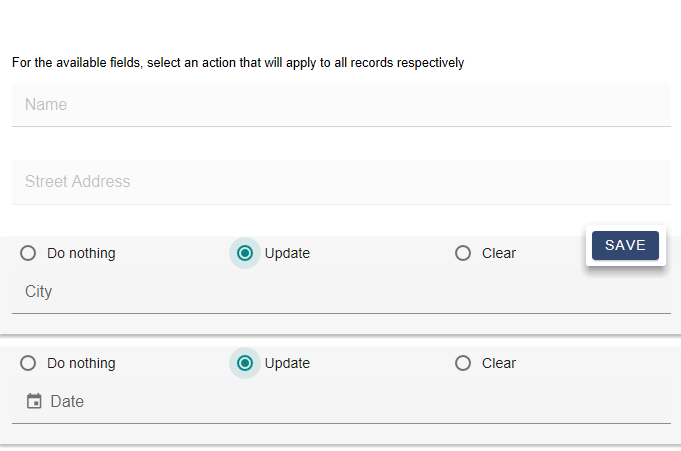
When "Update" is selected for a field the field itself will be blank and it is made available for edit. Saving the form will apply the values in any updated fields to all features that are members of the group.
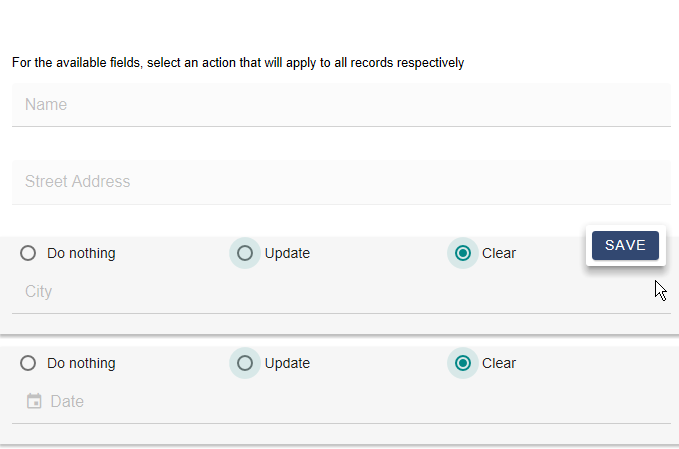
The "Clear" option will clear (blank out) values from this field for all features in the group.