Sources Overview
Sources are distinct interfaces to source data (GIS, non-geo tabular data, or even no data if you haven't collected any yet) that you name and configure. Source data can consist of external file data that you import directly into SpatialWorx, or external sources that you simply connect to
(database tables or web services). Sources that point to external data are facilitated by SpatialWorx's Data Adapters.
Data from multiple GIS formats and coordinate systems can be used in SpatialWorx.
In cases where you don't have any existing source data you can still create a Source via this interface and configure its form and display
characteristics.
The settings for a Source (its form and display styles) form a template for any Layers you add to a Project. All Project Layers are derived from a specific Source so you must have a Source defined before adding a Layer to a Project (that is derived from that Source). More than one Layer can be derived from a single Source, within a single Project or for Layers that are contained in multiple Projects.
Create a Source
Select the Sources option on the main console menu to open the Sources page.

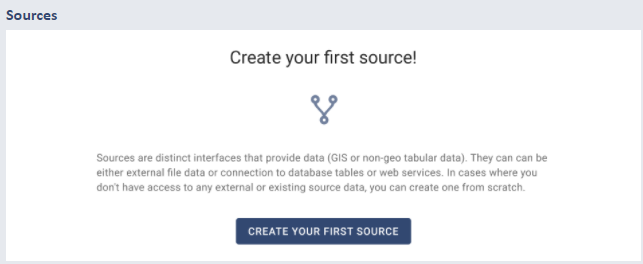
The first step is to select the Create New Source option on this page (+ icon on the menu). If you do not have any other Sources already created the system will open a page that prompts you to create your first Source.
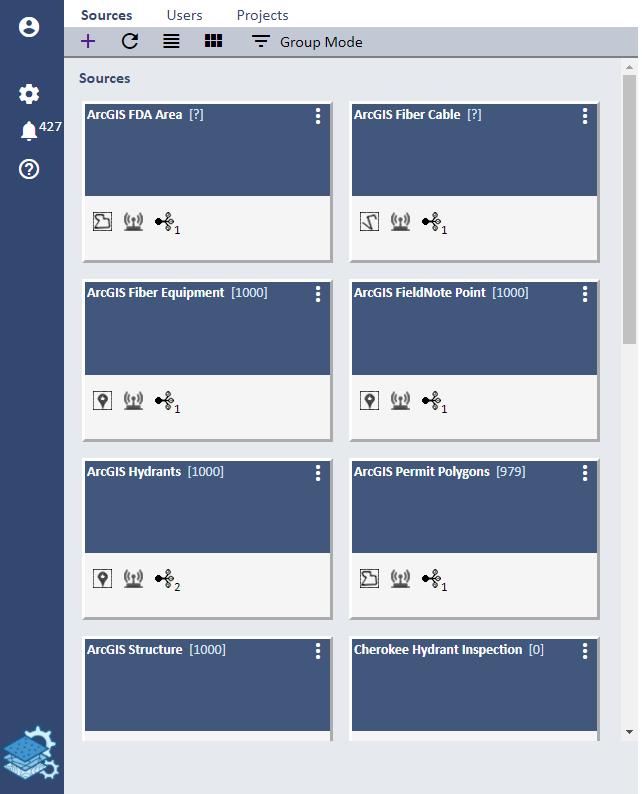
If you do already have Sources they will be listed on this page.
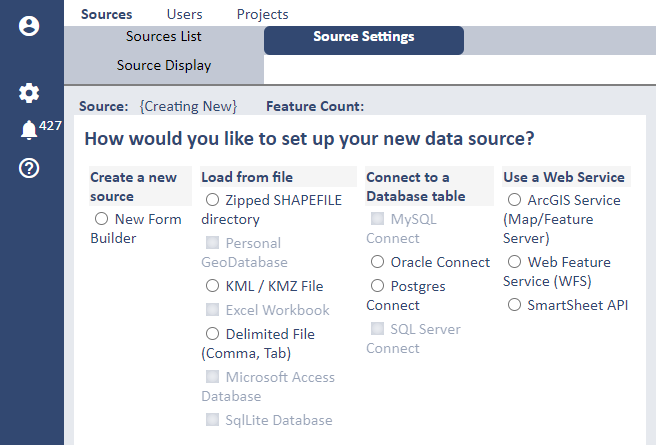
When you start Source create you will be presented with a set of options for the data source that will
form the basis of your Source - in cases where you don't have any source data select the Create a New Source/New Form Builder option.
Refer to the Remote Database Connections page for more information regarding
specific information for establishig a connection to a remote database table.
Refer to the ArcGIS Service page for more information regarding
specific information for establishig a connection to an ArcGIS Service.
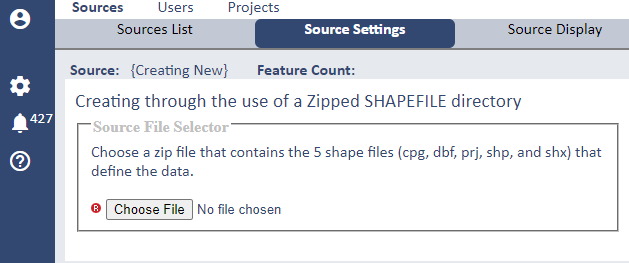
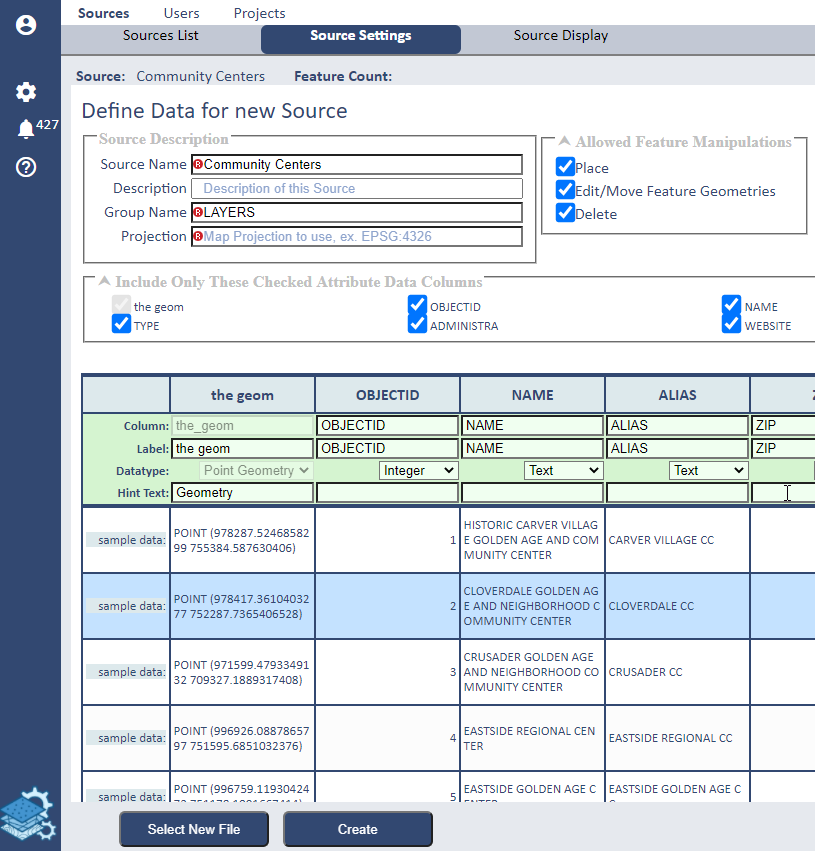
Choosing a File option for a Source will open a dialog similar to this:
When a file is selected for a Source you may optionally select which columns to include from the file in your Source and additionally set the name of the column (attribute) or label that will be available in SpatialWorx. The tabular interface also depicts the actual record data (as rows) to help you decide what data from that source you want to bring in and also optionally format its datatype.
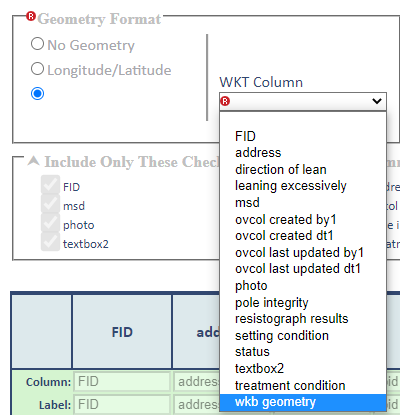
If the specific geometry column(s) cannot be determined automatically you can specify it via this dialog:
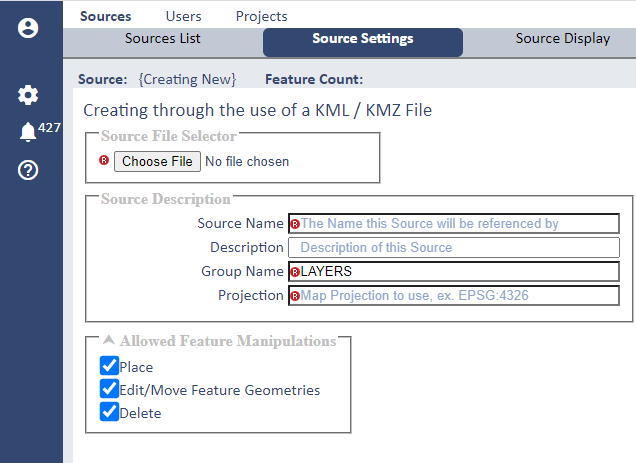
After choosing a file to import, or establishing the connection information to an external source (database table or web service), name your Source. If
you selected a source file the Source name will default to the name of the file, but you can change that if desired.
Optionally enter a Description for the Source.
The Group Name setting is for organizing Layers in the SpatialWorx App - for example, if your source data consists of a list of different tree types you might set the
Group Name as "Trees" and then have Layers for "Deciduous" and "Coniferous" trees. As part of the Source this is a setting that will also be inherited by
any Layers that are built from it.
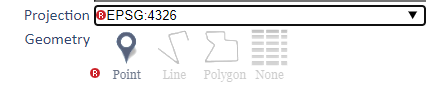
Select the Map Projection you want to apply to this source data as EPSG: 4326 or EPSG:3857.
For any external geo-based source the system will determine the geometry (symbol type) from the data as either a point, line, or polygon. However, if you either have no source data or have selected a non-geo source, you will be required to select the geometry type. Select "None" for non-geo source data.
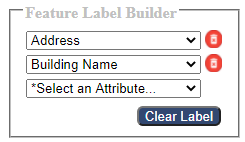
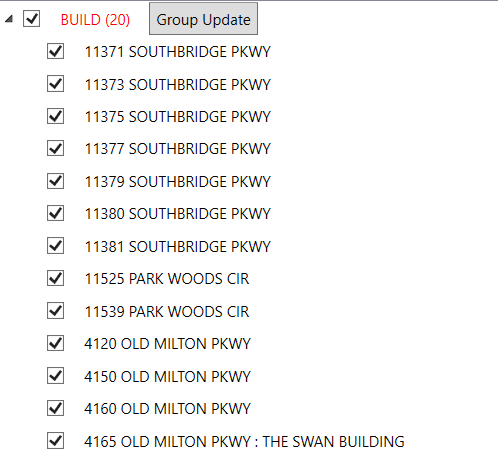
The Feature Label Builder setting is for building labels that will be shown in the SpatialWorx App for every Layer on the feature search results page. To build a label you simply select attributes from the source data in the order you want them to display for the label.
Here is an illustration of how feature labels appear in the search results dialog in the App.
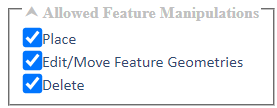
The Allowed Feature Manipulations settings provide a method of allowing or restricting attribute or graphic manipulations on features for a Layer built from this Source in the SpatialWorx App. For Sources derived from an external source (Oracle, ArcGIS, etc.) these settings are currently disabled by default. .
Press Create to create the new Source. The next step is to build a form for the Source and define its display style (symbology) - these settings will be inherited for any Project Layer that is derived from this Source.