Form
Drag and drop,or select and move, attributes, new fields, or other controls to add them to the Form.
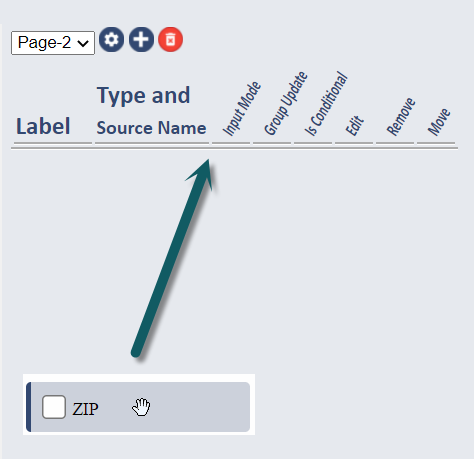
Note: Source Attributes or new fields can also be double clicked to add them to the Form.
Label |
When first added to the form, the Label is defaulted to the name of the attribute but it can be changed changed using the Attribute Editor Panel.. 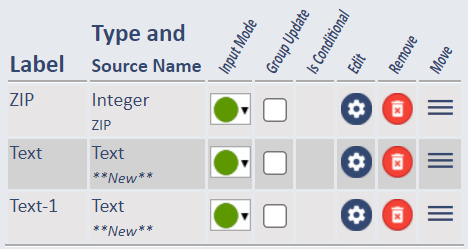
|
||||||||||
Type and Source Name |
Type is the actual datatype as Integer, Text, etc. Source Name is the actual name of the source attribute. | ||||||||||
Input Mode |
Set the field to:
|
||||||||||
Group Update |
Indicates if the field is “Group updatable” in the SpatialWorx App - this function allows the field user to select several features on a specific Layer and update one or more field values for ALL of them in a single operation, rather than forcing selection/edit of each feature individually. For an example of how Group Update works between Console and Application, click this link. |
||||||||||
Is Conditional |
Indicates
if the field has a display Condition defined in the Attribute Editor. If
a Condition has been applied to the field, a check
icon displays in the Is Conditional column - this means that the field displays only when this specific condition is met, typically
it is based on the value of another field in the same form. ( For example:
|
||||||||||
Edit |
Selecting the gear |
||||||||||
Move |
Selecting the move |
||||||||||
Remove |
Selecting the |


 ).
). icon opens
the
icon opens
the  icon grabs the field's row
and allows you to drag and drop it in a different position on the form to reorder it.
icon grabs the field's row
and allows you to drag and drop it in a different position on the form to reorder it. button removes the field from the Form.
However, it only removes the field from the form itself - it DOES NOT remove the attribute from the source data.
button removes the field from the Form.
However, it only removes the field from the form itself - it DOES NOT remove the attribute from the source data.